I wanted to revist the blogpost I created on kitting, since the kitting is now built also for AX 2012. It is a simple and easy to use customization that many of our customers appriciate, spesially since it is included in the same model as the Centralized product information form. I must excuse the picture quality in this post, but I’m a DAX expert and not a perfect blog stylist.
Kitting is a great alternative for companies that are not equipped with finished goods warehouse facilities or cannot afford the capital expenditure of setting up a finished goods warehousing facility. Your company can take advantage of the services that are necessary to forward a product to market quickly by keeping the component on stock instead of the finished customized product. With kitting you can also speed up the order processing, because no production orders are needed.
Kitting and sales order
One of the requirements is to show the kitting structure in the sales order form in Dynamics AX. Kitting stipulates that there is a hierarchy of items, where only the bottom level is real items that are purchased, stocked and priced, while the upper levels are phantom BOM items. When a customer orders a product, the customer only need to relate to the uppermost BOM-level, while the warehouse workers are picking the actual contents of the kit.
Explosion
Explosion of a phantom BOM items on a sales order is built into the order line processing procedure, the procedure that takes place every time a sales line is inserted, deleted or updated.
The parameter field Phantom that exists on the item table. This parameter defines if a BOM item is exploded on the sales line. Explosion of BOM item is performed on all BOM levels and all the phantom BOM levels create sales lines marked as a kit, while real items create normal sales lines. The relation between levels for the Kit sales lines is established via a new reference field related to the sales line. When using the sales order screen, the order looks just like the normal sales order screen:
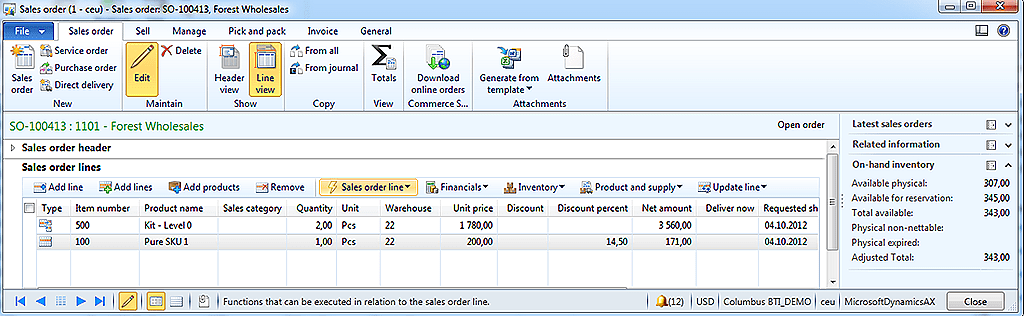
By clicking on the “Show/Hide kit lines”, all lines are shown inside each kit:
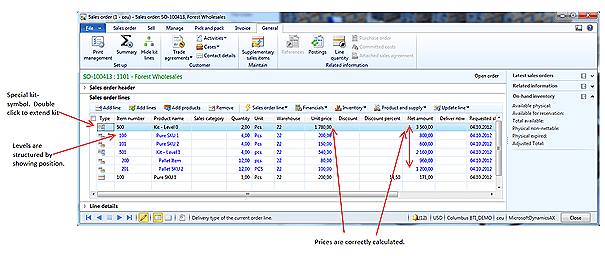
The bottom-level sales lines (real stocked items) should be editable only in terms of quantity, unit price, line discount amount and multiline discount amount, the rest: delivery dates, etc. is derived from the uppermost line.
The structure of BOM cannot be manually adjusted: sales lines that are sub levels of the top phantom BOM cannot be manually added, but unwanted lines can be deleted.
Price and discount calculations
Price amounts and discount amounts are set on the lowest level of BOM only. The price on the upper level is always the sum of the sub lines.

|
Field |
Calculation direction |
|
Sales quantity |
Calculated downwards |
|
Unit price |
Calculated upwards |
|
Discount amounts |
Calculated upwards |
|
Discount percent’s |
Calculated downwards |
|
Line amounts |
Calculated upwards |
Inventory transactions to kits
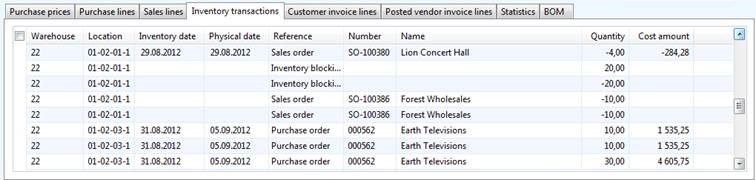
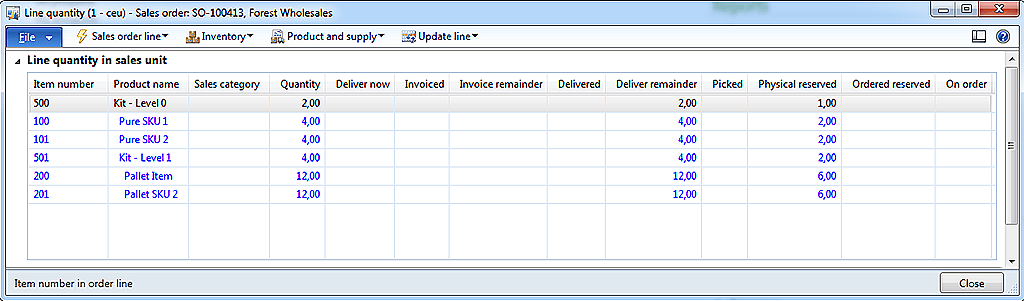
The final kits do not have inventory transactions. The reason for this is that kits are “virtual items” that do not need a physical picking. It is the sub-components that are picked. Kits are still being packing slip updated and printed on the invoice. But still it is possible to see the order process flow of kits, since this can be calculated on the basis of the kit lines. The line quantity form will therefore still give meaning as shown here.
The Kitting form letter setup form
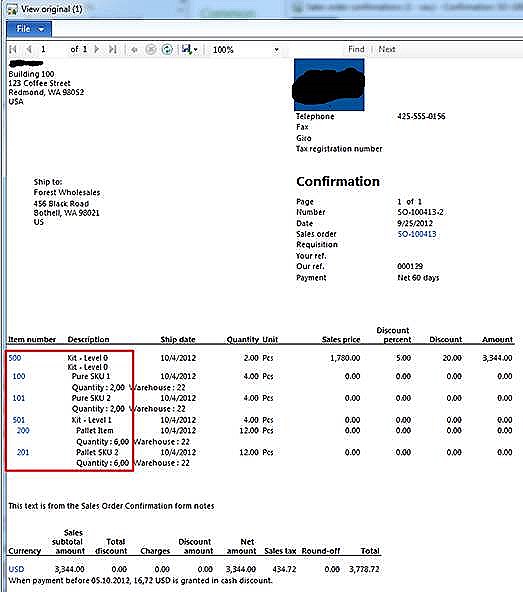
The display of the kitting structure can be shown per item and customer on confirmation, packing slip and invoice. To handle this, a new form Kitting form letter setup is available. This form is following the standard “Table, Group, All” Microsoft Dynamics AX pattern. Here the user can specify if the kitting structure is printed on confirmation, packing slip and invoice for a particular customer.

The form is available under Sales and marketing—>Common—>Kitting—>Kitting form letter setup.
If the Show kitting structure is enabled, the form letter will show the kitting structure as follows:
Kitting FAQ
This sections covers information related to Assembly and Kitting, and is described as a FAQ.
|
Question |
Answer |
|
I have a kitting line, but I don’t have any inventory transactions associated to it. Why? |
All exploded kitting lines do not have any inventory transactions. It is only the real items that have inventory transactions. All statuses on the kit are based on the containing lines. |
|
Why can’t I change sales price on a kit. |
Price on a kit is based on the prices on each included item. To change the price of a kit, you need to change the prices on the included items. |
|
How do I set up an item as a kit? |
A kit needs to be a BOM. The flags ‘Phantom’ also need to be enabled. (References tab page in the Item details form)
In addition, the kit item needs to have a valid BOM associated to the kit. |
|
How do discounts work on kits? |
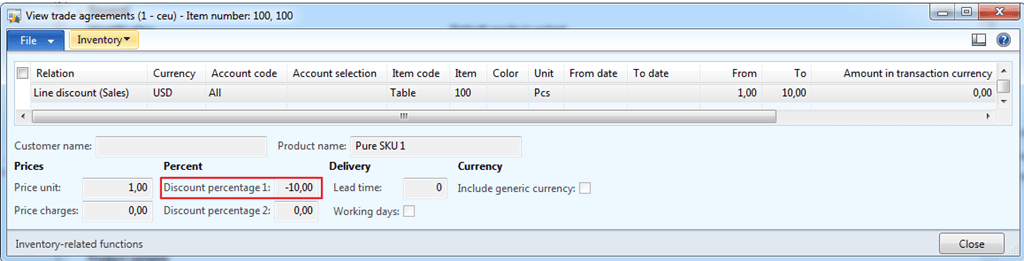
In AX you have 2 types of discounts. Discount amount and percent. Discount amounts need to be set on the separate kit lines, while percent can be set on the kit itself. |
|
How do taxes work with kits? |
Taxes are calculated on the kit lines, and not on the kit itself. The taxes and VAT is therefore calculated like standard AX. |
|
I see on the confirmation and invoice that only the kit contains the sales value, and the lines are zero. |
Yes. This is how kitting works. The sales value and prices are placed on the kits and not on the kit lines. This is also the perception of the customer when he receives the form letter. |
|
Can I manually add and remove kit lines? |
Kit lines cannot be manually added, but they can be manually removed The reason for this is that kitting is supported in a multilevel structure. |
|
How can I see the kit-lines on my sales order? |
You can see the kit lines by clicking on the button Show/Hide kit lines on the sales order form, or double click on the |
|
How can I take out statistics on sale of a kit? |
The customer invoice will contain the information required. Therefore use information from here when creating additional statistics/reporting. |
|
I see I get a total available, picked, delivered and invoiced on kits. How is this possible? |
The total available is calculated on the basis of the kitting lines. The most restricting kit line will decide the total available on the kit-header. |
|
Can I part deliver a kit? |
Yes, by using the deliver now column, and then starting the picking posting. But it is only possible to part deliver whole kits. You should not part deliver sub-items in the kit. |
|
How is returns and credit notes handled for kits ? |
Since kits are items that do not have inventory transactions, all returns must be done on the kit-lines. When creating a return on kitting items, it will only be the kit-lines you can take a return on. |


If this is something that is interesting for your implementation let me know. The solution has unfortunately a too large footprint in DAX to be distributed as a product, so it is being delivered as a customization.