D365 : SysObsolete and flighting

SysObsolete is an X++ attribute used to mark classes, methods, fields, or enums as deprecated. It signals to developers that an element should no longer be used and may be removed or replaced in a future release. When applied, the compiler emits warnings (or errors, depending on severity) whenever the obsolete element is referenced, guiding refactoring toward the recommended alternative. SysObsolete is a key mechanism for managing technical debt, ensuring forward compatibility, and enforcing controlled deprecation without breaking existing code immediately.

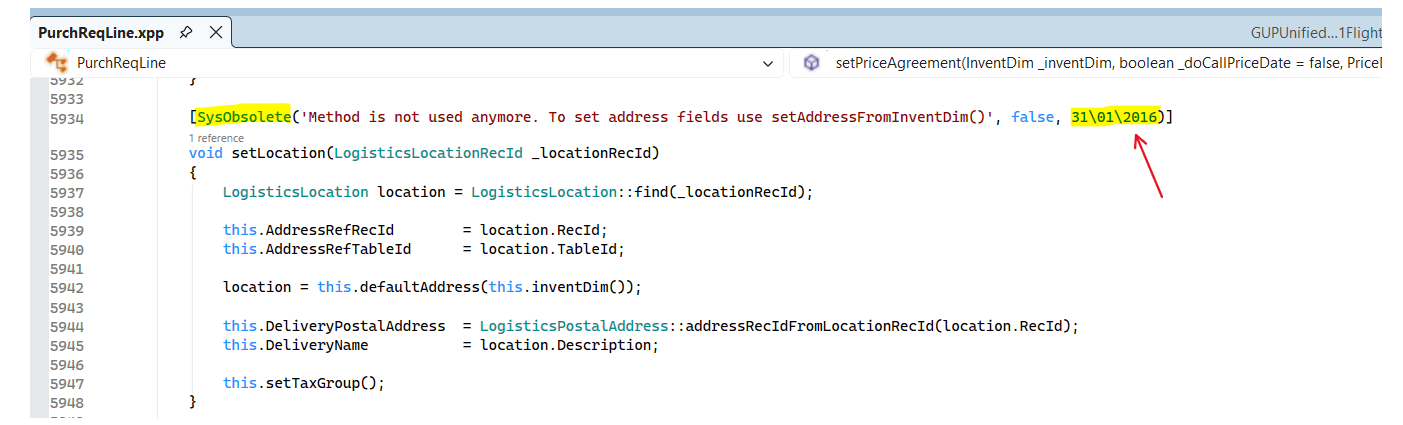
In the codebase, these attributes typically appear directly on the artifact itself, making their intent explicit at compile time.

I did a small count using Agent Ransack and found 3,994 methods marked as obsolete. I fully understand that Microsoft must account for customers, partners, and ISVs that still rely on parts of this surface area. That said, the cleanup process is objectively slow. We still have code that has been obsolete for more than a decade, which indicates a systemic issue rather than a temporary compatibility concern.

According to Microsoft documentation, obsolete methods may be deleted unless telemetry shows that they are still being used. If telemetry indicates usage, Microsoft will not remove them in order to reduce the risk of breaking consumers. This is an important detail: the presence of obsolete code is not the real problem — continued usage is. As long as deprecated APIs are still invoked in customer or partner solutions, Microsoft is effectively blocked from removing them.

Microsoft therefore recommends compiling your codebase against the latest application and platform versions at least every 12 months. Any warnings caused by deprecated or obsolete artifacts should be addressed as soon as possible. In practice, these warnings should not be treated as background noise. They are an explicit signal that technical debt is being carried forward.

This leads to an uncomfortable but necessary conclusion: a significant reason obsolete code remains in the platform is that customers, partners, and ISVs are not acting on compile warnings. If obsolete APIs continue to show up in telemetry, Microsoft cannot safely remove them — regardless of how old or redundant they are.

As a community, we should take more responsibility here. Cleaning up our own code and removing dependencies on obsolete APIs makes the platform healthier for everyone. When telemetry no longer shows usage, Microsoft can finally complete the deprecation cycle. This is one of the few areas where individual discipline directly enables platform progress.

The same reasoning applies to flights and feature flags. A quick scan shows 8,914 classes ending with *Flight, many of which are enabled by default today. Flights serve an important purpose during controlled rollouts and experimentation, but once a flight is globally enabled and has proven stable, it has effectively completed its lifecycle.

At that point, it should enter a formal deprecation path. Permanently enabled flights that remain in the execution path add:

  • Cognitive overhead for developers
  • Runtime condition checks
  • Upgrade and refactoring complexity

In many cases, they have simply become technical debt. While each individual check may be cheap, the cumulative cost across the platform is not zero. Every conditional branch executed thousands or millions of times per day matters.

The same applies to features that are now considered part of the core behavior. If something must remain configurable for business reasons, it should be expressed as a parameter, not as a flight or feature flag. Flights are a rollout mechanism — not a permanent configuration model.

None of this ignores the realities of backward compatibility or long customer upgrade cycles. Microsoft is right to be cautious. Telemetry-based decisions are safer than forced breaking changes. But that caution only works if the ecosystem does its part.

AI and Copilot will help us write more code. They will not reduce the long-term cost of carrying unnecessary code forever. D365 will be delivered, extended, and maintained for many years to come. If we want it to remain performant, understandable, and evolvable, we need to treat deprecation as a process that actually completes — not as a warning we learn to ignore.

D365 and the quick ‘ping’ performance test

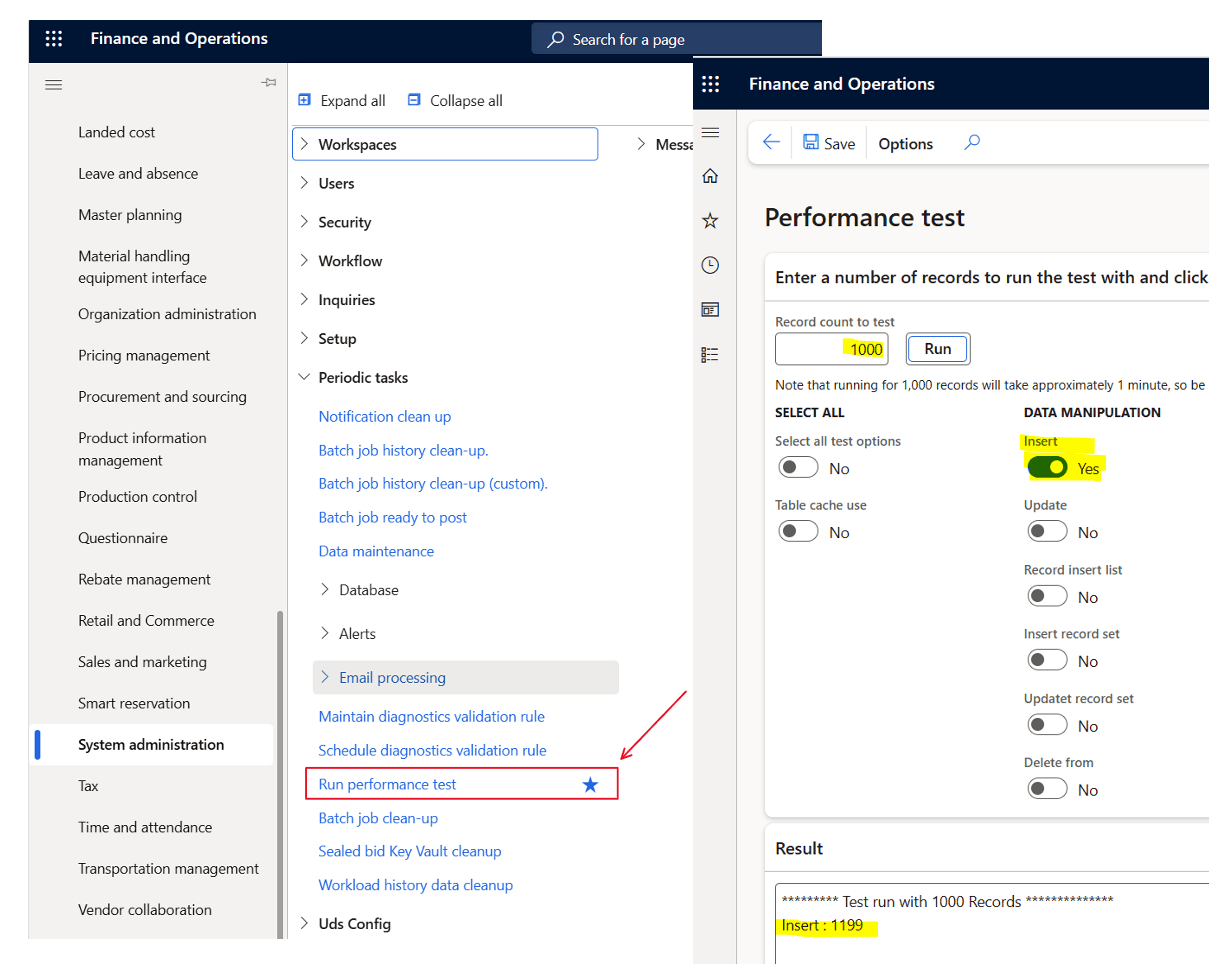
Did you know there is a very easy way to check if your core D365 database are performing OK. Use the tool ‘Run performance test‘.

There are no need to enable every test. Just focus on the insert of 1000 records.

What is shown is the number of milliseconds it takes to insert 1000 records. (You can go higher or lower to get better average). And remember to run it a few times to get a feeling of the average.

If your PROD performance on 1000 records is

less than 2000ms – You are good, and have great Azure SQL performance. I prefer to see 1000ms, but depending on load on your system

2000ms-3000ms – OK performance, but you should check that you don’t have AOS crashes resulting in SQL failovers. This is also the typical performance of a Tier-2 environment.

Above 3000ms – If it remains steadily above 3000, then something is probably wrong, and you should open a support case to have telemetry looked at.

You can also see the performance test in trace parser, and here is how it looks when doing 10.000 inserts in a OK performing PROD environment. exclusive average and 0.78ms/insert is quite ok.

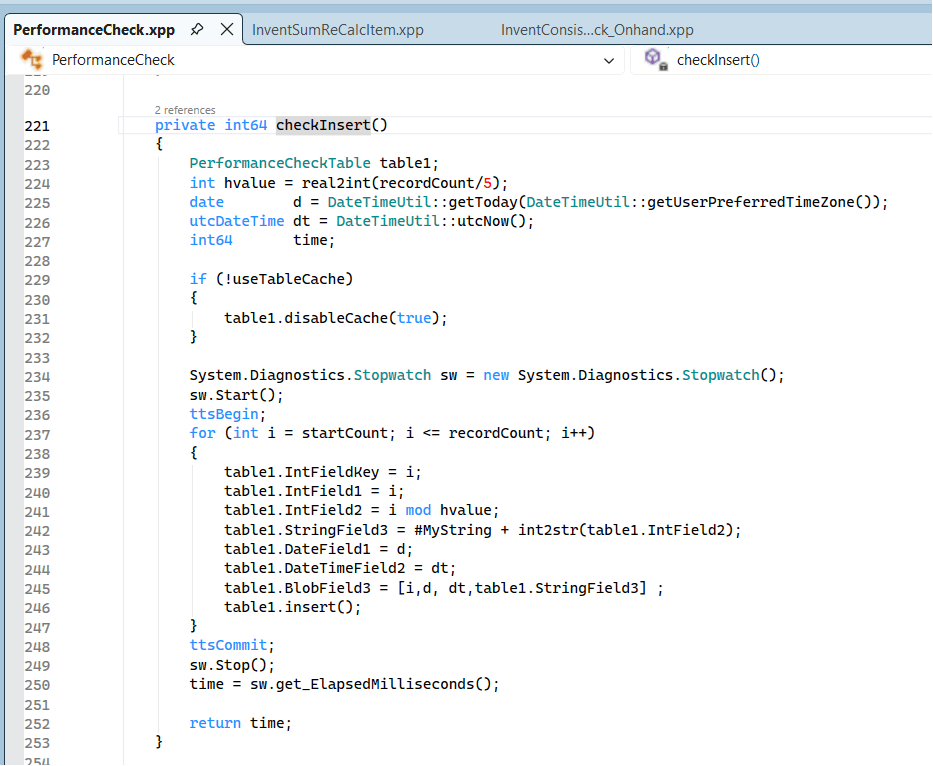
The code executed is basically just a loop inserting some fields in a table named PerformenceCheckTable.

The reason why this test is OK, is because it is only measuring the core performance of the Azure SQL. There are no additional code, complex queries, index problems etc.

When I performance test, I first do this validation to check that the base performance is stable, and that I have a well functioning platform. If this is OK, then I can do deeper and analyse performance on specific functionality covering queries, indexes and algorithms.

One reason I have seen of why the core SQL performance is below “good-performance”, is when there are customized code or ISV that actually crash the AOS. If the crashes happens too often, it seams to me that some disaster recovery mechanism is kicking in and this results in a different Azure SQL SKU or in a different cluster, that may have a lower performance. (We don’t have full insights to this)

So “ping” test your inserts if you wonder if the underlying SQL platform is acting a bit slow.

D365 and the performance of app.css

Each time you load a D365 form som scratch, and you take a view in F12, you will see that there are a lot of calls happening, but one of them, that often stands out are App.Css.

app.css may look like “just a stylesheet,” but it’s a foundational part of the Dynamics 365 F&O web client. Because it is render-blocking and downloaded at the start of each user session, any issue with its size, compression, or caching has a direct impact on the speed and responsiveness of the entire system.

At live customers where we see download time of vary from 3s to 12s, and it’s size is approx. 15.9 MB. My experience is that if this file is downloaded slow, then users complain about performance issues, and that the F&O feels “sluggish”.

You can try it out on your own environment by going to :
[Your F&O URL]/WebContent/ApplicationSuite/less/21/0/app.css

I often see user using favorites or pressing F5. This ALWAYS downloads the file. But if I navigate nicely through menus and forms, it uses the the existing downloaded APP.CSS file. I don’t know why there are not better caching on this file, because it it directly related to the user experienced performance.

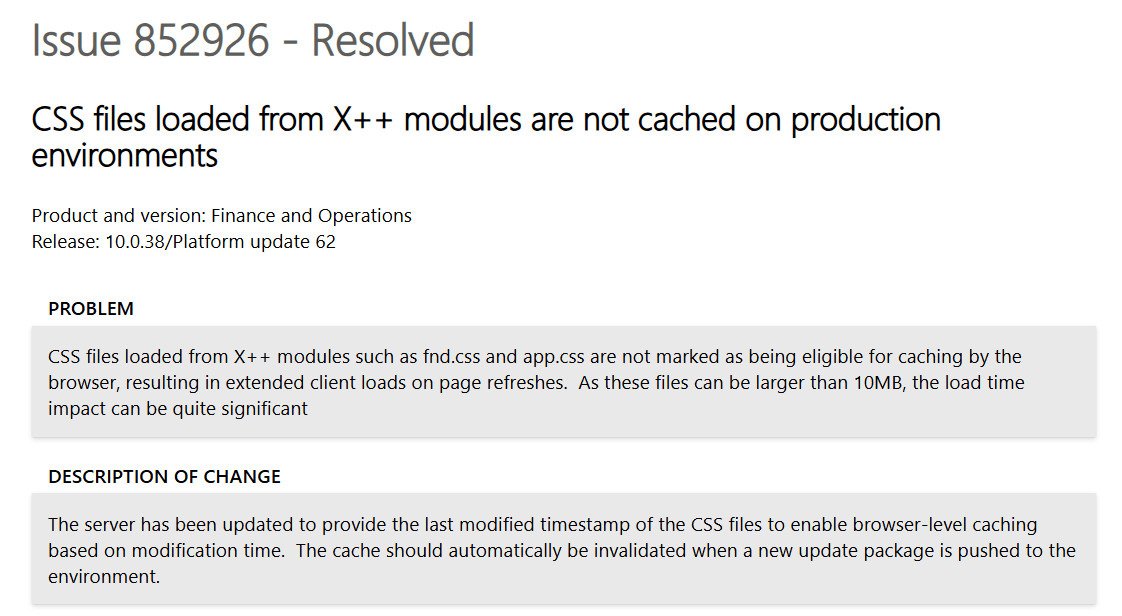
I did find the following resolved issue on the matter, but I cannot see that it works :

But this fix does not seam to work when doing a hard reload, browsers bypass the cache and pull the file again.

The request header is :
Cache-Control: no-cache
Pragma: no-cache
Accept-Encoding: gzip, deflate, br, zstd

The response header is:

Cache-Control: must-revalidate, private
Content-Length: 15864379 (≈ 15.8 MB)
Date: Sun, 23 Nov 2025 11:12:13 GMT
Expires: Sat, 22 Nov 2025 11:12:14 GMT
Last-Modified: Mon, 06 Oct 2025 14:47:48 GMT


Some questions I have is:


No compression. Why ?

  • With gzip/Brotli, you’d probably be in the 1–3 MB range instead of 15.8 MB.
  • Browser advertises Accept-Encoding: gzip, deflate, br, zstd.
  • Server returns no Content-Encoding → raw 15.8 MB.

Cache semantics are conservative.

  • Cache-Control: must-revalidate, private
  • Expires is already in the past
  • This is cacheable by the browser, but:
    • It will tend to revalidate more often.
    • It will never be shared via proxies/CDNs.

I asked ChatGPT to explain what we could experience if we had some serious improvements on how app.css is handed :

The current implementation of app.css in Dynamics 365 Finance & Operations represents a significant and unnecessary performance bottleneck. In multiple production environments, this single stylesheet is delivered as a 15.8 MB monolithic file, served without HTTP compression, and marked with conservative caching headers that force frequent revalidation. This design means every cold session—and far too many warm sessions—incurs several seconds of render-blocking download time before the UI can even appear. This contradicts modern web performance standards and is fundamentally out of alignment with best practices used across Microsoft’s own cloud products.

Even worse: the bundle includes CSS for dozens of feature areas the user will never open, yet all that styling is shipped up front in a single blocking request. A sensible architecture would split critical UI styling into a small, cache-friendly core bundle and load feature/workspace CSS asynchronously. Combined with proper Cache-Control headers and gzip/Brotli compression—both trivial to implement—first-paint latency would drop from multiple seconds to well under a second, and warm loads would be effectively instantaneous.

Put bluntly: no enterprise web application in 2025 should ship a 15 MB uncompressed render-blocking CSS file, and F&O is long overdue for a cleanup here. Microsoft can dramatically improve perceived performance across all customers by modernizing static asset delivery for these core UI bundles.

To put the impact into perspective: today a 15.8 MB uncompressed app.css over a typical 15–30 Mbit/s corporate connection costs roughly 4–9 seconds of pure transfer time on every cold load — and that’s before the browser even starts rendering the UI. The same stylesheet, if split and compressed down to ~2 MB of critical CSS, would load in well under a second on the same line speed. With proper client caching on top, most users would pay this cost once per update, not once per session. In other words, a trivial change in how static assets are packaged and cached would turn “wait 5–10 seconds for the client to wake up” into “page is ready almost immediately” for every F&O customer on the planet. “

Hmmm…. Chatty agrees with me 🙂 This should be fixed.

Here is the “idea” for votes : https://experience.dynamics.com/ideas/idea/?ideaid=de4f0ff0-dac9-f011-ad8e-7c1e52cc5c16

D365 : Why is SysDA uptake so slow ?

SysDA is a data access abstraction layer. Instead of writing raw SQL or direct select statements, SysDA lets developers build queries through objects (SysDaQuery, SysDaSelect, SysDaWhere, etc.).

Some benefits are:

  • Safer SQL generation
  • Better performance optimizations by the platform
  • Database-agnostic query logic
  • Protection against SQL injection

It essentially converts X++ query intent into SQL at runtime, while the platform can optimize or change behavior without code rewrites.

The SysDA framework was made available 2019 and there are a few blogposts and docs relevant to read to understand the benefits:

2019 – Michael Fruergaard Pontoppidan – SysDa – a new X++ query API

2021 – Peter Villadsen – The SysDA framework

Docs – Access data by using the SysDa classes

But when I look at both Microsoft code, ISV code and Partner code, I see a very low uptake on using this framework.  Why ?  The benefits are huge.  Especially on performance.  Nathan Clouse did perform tests in 2023 on Database Inserts and Performance and did show in the comparison blog post show real performance gains. As Nathan writes:

for inserting records makes SysDA appear to be a no-brainer for workloads that demand high performance

Despite the clear technical advantages, community adoption of SysDA has remained relatively low because most developers are already deeply invested in classic select statements and QueryBuild classes, which have worked reliably for decades. SysDA arrived late in the F&O lifecycle, shipped with limited documentation, minimal samples, and almost no public benchmarks showing real performance gains.

Without strong Microsoft advocacy, training, or tooling support, many assume SysDA adds complexity without offering tangible benefits. In addition, it is harder to debug, unfamiliar to consultants who are not pure developers, and optional rather than mandated.

The result is a technology that solves real performance problems, but sits under-used because the learning curve appears high, the payoff isn’t visible, and most customers don’t know it exists.

Dear community and Microsoft;  Please use SysDA more!  We need more power.

Where are the implementation cost-reductions ?

I’ve been implementing D365 since it first became available. Over the years, the improvements have been both incremental in the short term and fundamental in the long run. Cloud, AI, and modern architecture have reshaped what’s possible.

But what puzzles me is this: the costs of implementing D365 and transforming business operations haven’t changed in any dramatic way. In short—it’s still as expensive as before. D365 projects remain a significant investment. I haven’t seen groundbreaking cost reductions nor revolutionary improvements in project timelines.

Is it the complexity of the businesses we serve that keeps costs high?
Or is it the way we implement?

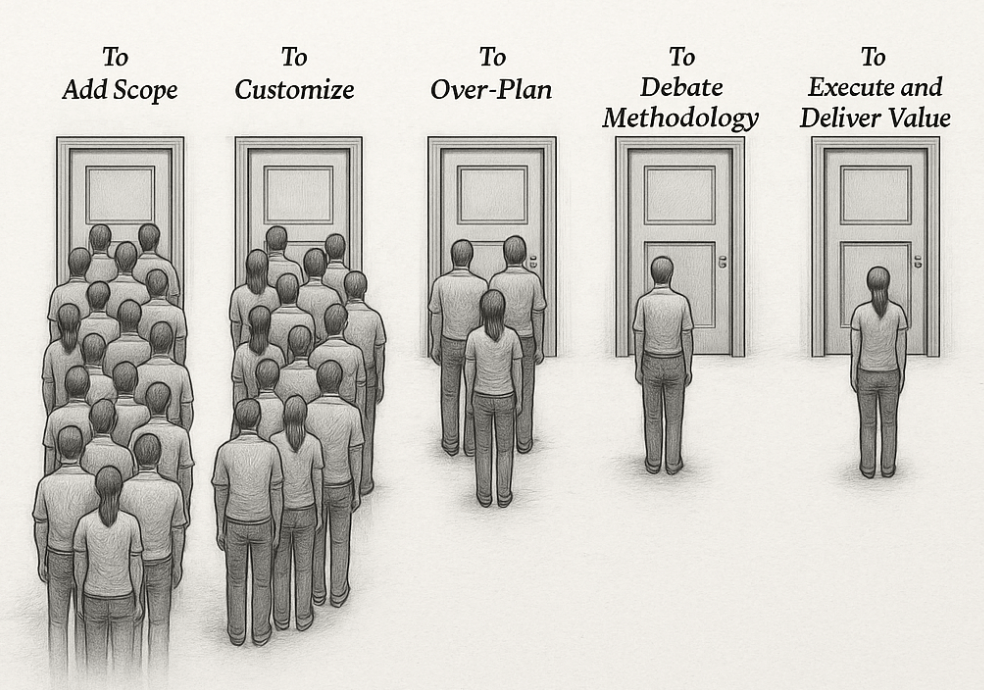
We now have more tools than ever before: preconfigured templates, industry accelerators, AI-assisted data migration, automated testing, low-code/no-code extensibility. But has any of this translated into faster, leaner projects? Or do these same tools just create space for more scope, more configuration, and more “what if we also…” discussions?

Maybe the real challenge isn’t the technology at all, but people. Business transformation has always been more about change management than software deployment. Even with better platforms, organizations still struggle to align processes, culture, and governance. Could these softer elements be the real bottleneck—and no technology ever deliver the cost reductions we expect?

Or is it us—the implementers?
Do we hold on to project models that worked in the past instead of fully embracing new approaches? Are we overcomplicating, or simply responding to inherent complexity?

And perhaps there’s another angle: the way projects are guided from the top. Do managers at implementation partners truly understand the realities of modern D365 projects? Or are decisions sometimes made with outdated assumptions about effort, scope, and methodology? It’s a delicate question—but if the leadership guiding these projects hasn’t evolved as quickly as the technology, could that also explain why costs remain stubbornly high?

And what about the customers?
Do they sometimes expect D365 to be a silver bullet, expanding scope beyond what’s realistic? Does the push for customization and perfection undermine the potential for a lean, standard-first approach?

If costs haven’t dropped, maybe the question shouldn’t stop at cost. Perhaps the value and revenues for companies implementing D365 have increased—making the same (or even higher) implementation spend worthwhile. Have organizations gained agility, sharper insights, or stronger customer engagement that offset the cost? If so, maybe the calculation has shifted from cost reduction to value creation. If not, then the cost question becomes even more urgent.

Looking back, I see remarkable progress in the platform itself. Yet when I look at implementation costs, I can’t shake the question: have we really moved forward in how we implement?

So the question remains: Have you actually seen D365 implementation costs go down—or is the real story in the value delivered?


Some facts to reflect on

  • Implementation still costs 2–5× license fees — $50K in licenses often means $150K–$250K first-year total (source).
  • Timelines haven’t collapsed — large D365 projects still average around 14 months (source).
  • Value is real — IDC found organizations gained an average of $20.6M in annual benefits after D365 implementations (source).

Chatty have helped with this post, but all content is mine.

D365 and the Mode of delivery trap

Within D365 SCM, the “Mode of Delivery” field plays a crucial role in specifying how goods move from you to your customers (or from your vendors to you). Despite its straightforward purpose, this field is frequently misused – often repurposed as a transportation route or itinerary scheduling tool. Putting different purposes to this field, and you will dump issues into other modules like eCommerce and Finance, causing a domino effect of issues and additional unnecessary costly extensions.

In D365 SCM, the “Mode of Delivery” identifies the method by which an order will be delivered. It can represent various shipping or pickup methods, such as:

  • Standard shipping (e.g., ground shipping)
  • Expedited shipping (e.g., next-day air)
  • Customer pickup (e.g., in-store pickup)

The primary purpose is to classify the delivery method and link any associated charges. This field then appears in key processes like sales orders, purchase orders, and other logistics-related transactions to help provide clarity and consistency across the supply chain. Here are the most common misuses:

Using Mode of Delivery as a WMS or Route Planning Tool

Some organizations attempt to store intricate WMS and transportation routes (e.g., multi-stop trucking routes or flight itineraries) in the “Mode of Delivery” field. This creates confusion, as the system is not designed for detailed route or shipment scheduling in this specific field.

Storing Unrelated Carrier or Service Details

Another misuse occurs when teams lump specific carrier service levels (UPS Ground, FedEx Priority, etc.) or internal steps into a single “Mode of Delivery.” This leads to an overloaded setup that becomes unwieldy to maintain and doesn’t reflect the actual purpose of the field.

Overcomplicating the Setup

Some users create a large number of “modes” to capture every nuance of logistics. This approach can lead to duplication, data chaos, and confusion across departments. Especially related to the eCommerce features within Dynamics 365, where you may have to create large customizations because of the misuse of the mode of delivery purpose.

Proper Implementation

  • Keep It Simple
    Define each mode of delivery at a level that matches business needs—for instance, “Ground”, “Air”, “Sea”, or “Pickup.”
  • Associate the Mode of Delivery with Charges
    If certain modes carry different shipping costs, link them to delivery charges so the system automatically applies the correct fees. This is especially related to express fees etc.
  • Use Transportation Management for Complex Requirements
    For WMS or advanced route planning or load building, consider leveraging the Transportation Management module rather than storing those details in the “Mode of Delivery.”

While it may be tempting to store every shipping detail in the “Mode of Delivery” field, keep in mind that this field’s strength lies in identifying how products are being shipped or picked up—not in detailing where or exactly when they travel. By maintaining a clear, concise setup, you avoid confusion, enhance data integrity, and help ensure your organization’s logistics run smoothly.

When using D365 eCommerce, we see some more dramatic effects, where delivery options is calculated for each mode of delivery and for each product you have in you’re your sales basket.  So if you manage to have 100 modes of deliveries and 100 products in your sales basket, the eCommerce checkout modules will perform 10.000 charge calculations. 

So, keep it simple, and do not try to use mode of delivery to other purposes than it is actually meant.

D365 Behind the Scenes of X++ Code, Compilation, and Runtime

These notes show my personal learning and interpretations, and they are not official documentation from Microsoft. The goal is to offer a deeper look into how X++ code, the compiler, and the runtime work in Dynamics 365.

Where is the X++ code stored in the file system?
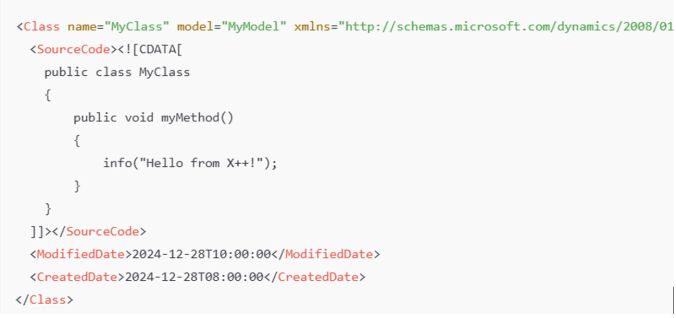
X++ code resides in XML files that define classes, tables, forms, and other objects. These files are part of the application model’s metadata and appear in Visual Studio as X++ objects.

Class Definition
: Found as an XML file under \Classes\MyClass.xml.

Table Definition: Found as an XML file under \Tables\MyTable.xml, listing fields, methods, etc.

In a D365 10.0.42 codebase, the PackagesLocalDirectory contains approximately 542,091 files (about 17.69 GB). Of these, around 340,029 are XML files, representing the AOT (Application Object Tree).

What are the relationship between Models and Packages ?
All code is placed into a model, which is essentially a design-time logical grouping of metadata and source files. You can see them on disk in a path like:

D:\AOSService\PackagesLocalDirectory\Application\Metadata\MyModel\Classes\MyClass.xml

Here,

  • ModelName = MyModel
  • ObjectType = Classes
  • ObjectName = MyClass.xml

There are 171 models in the standard Microsoft codebase. Each model belongs to a package, which serves as the compilation and deployment unit. You can combine one or more packages into a deployable package for runtime.

Example
The Application Suite model is the largest one, with 185,939 XML files, totaling 1.32 GB.

Compilation Output and .NET Components

Compiling X++ turns the application artifacts (X++ code, metadata, and resources) into deployable and executable components in .NET Intermediate Language (IL), which run under the CLR (Common Language Runtime). The compilation produces:

  1. .dll files (the main assemblies)
  2. .netmodule files (modules containing the IL code for X++ types)
  3. .pdb files (debugging symbols, used primarily in development environments)
  4. .md files (runtime metadata)

.netmodule files hold the actual IL code for each X++ type. If you open a form like SalesTable, all the required .netmodule files for that form must also be loaded.

.md files contain runtime metadata, classified by type (Class, Table, Form, etc.). They include only the essential metadata required at runtime (e.g., control hierarchies, table relationships), in contrast to the comprehensive XML files that exist only at design time. As a result, XML files are excluded when you deploy to sandbox or production.

.pdb files are for debugging and are not typically deployed to production.

How the Compilation Process Works

X++ code is first compiled into .netmodule files. The .netmodule files are then linked together to produce the final .dll file for the package. The .pdb file is generated alongside the .dll and holds debugging metadata.

The .netmodules also allows for incremental compilation, and you will thus often see multiple .netmodules files generated.  But when you compile the entire smaller module, you will see that the .netModules are typically returned to one file. But for larger modules, like the Application Suite you can see that there are 276 .netmodules files. I suspect there are a limitation or optimalization to have the Application Suite splitted into multiple files.

Runtime Execution and Loading Behavior
When the system needs to run code:

  1. The main .dll (e.g., Dynamics.AX.ApplicationSuite.dll) is loaded first.
  2. The .netmodule files containing the needed X++ types (classes, forms, etc.) load on demand.

The runtime loads a specific .netmodule only when a type within it is first accessed. The first load includes overhead, such as initializing event handlers and chain-of-command (CoC). Subsequent calls to types in the same .netmodule do not incur the same cost.

How does this affect runtime behavior in relation to Cold vs. Warm Start

I guess most of us have experienced performance difference between cold and warm starts, and this is caused by runtime behaviors involving .netmodule files and object initialization.

At cold start:

When a class or object is accessed for the first time after an AOS restart, the runtime loads the .netmodule containing the class/object into memory. Static constructors and chain-of-command/event handlers are initialized and metadata required for the type is fetched and cached.

This initialization process can take significant time, especially for larger .netmodule files or types with complex dependencies.

To further explain, when opening the salesTable form can take up to 30s, as there are a lot of tables, classes, form elements that needs to be loaded also.  And each of these may have extensions event handlers and chain-of-command.  This results in an enormous amount of files to be accessed, loaded and initiated. In short, a domino effect of loading executable .netmodules happens. If you take a look at SalesTable, you realize the number of tables, extensions, modules and code that is packed together on a single form. I have not tried to understand or count the number of elements that go into loading this form, and here just showing number of extensions and tables you see in an extension of the Sales Table form.

During runtime, the system also builds and populates various caches (e.g., metadata, plugin, and event handler caches). Cache population may traverse large amounts of metadata, contributing to the cold-start delay.

At warm start:

After the .netmodule and associated handlers are loaded into memory, subsequent references to types in the same .netmodule are faster because the .netmodule is already in memory and metadata and handlers have been initialized. Opening the salesTable drops from 30s to 3.5s.

How about the Azure SQL?

While some suspect Azure SQL for cold-start delays, the database typically performs very well and is not the main culprit for slow cold starts. For example, inserting 10,000 records via a SQL script might take only 143 ms, whereas inserting them through X++ can average 10,000 ms—largely due to latency and transactional overhead on the AOS side, not the database itself.

So the conclusion is that it makes no sense to blame the SQL for cold start performance issues.  The actual reason is the object loading and initiation of assemblies and .netmodules just takes time.

Word of advice

  1. Reduce AOS restarts/deployments: Every AOS restart triggers the same loading and initialization of .netmodules and IL.
  2. Test performance on a warm system: Always measure performance after the first load.
  3. Implement a warm-up script: Access your most-used forms (SalesTable, PurchTable, CustTable, etc.) automatically on each AOS to reduce cold-start delays.
  4. Avoid blaming Azure SQL: The real delay is in loading .netmodule files and initializing CoC/event handlers.
  5. Adding more AOS instances may not help. Each AOS must still load and cache everything. As a result, more AOS instances could increase overall warm-up demands, and more users will be affected by the cold system syndrome.

References For official documentation on X++ and model architecture, consult Microsoft Learn: X++ Programming and other related Microsoft documentation.