AX2012 FP Product receipt from X++

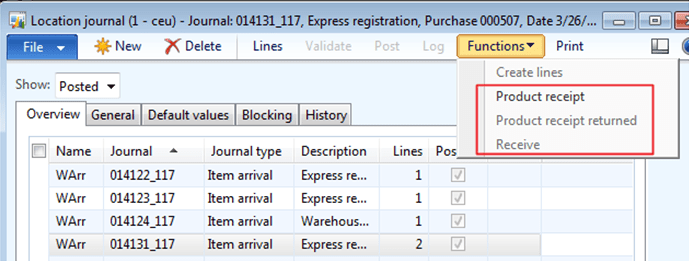
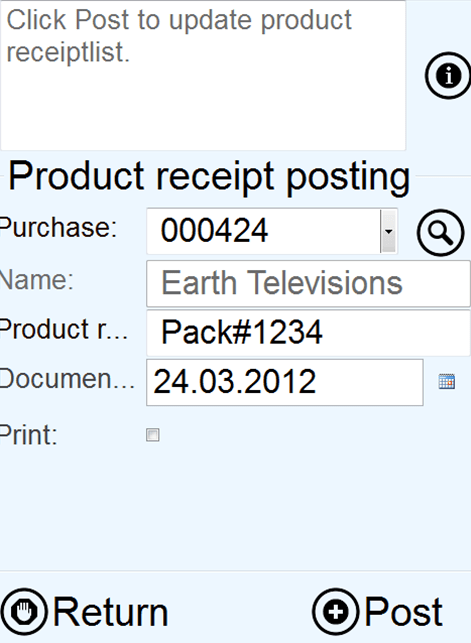
Here the other day I have seen a change in functionallity between AX 2012 (6.0) and AX 2012 Feature Pack (6.1).  At several customers we are using simplified product receipt, where the warehouse worker and do a product receipt from a small PDA screen, after the items has been registrered :

image

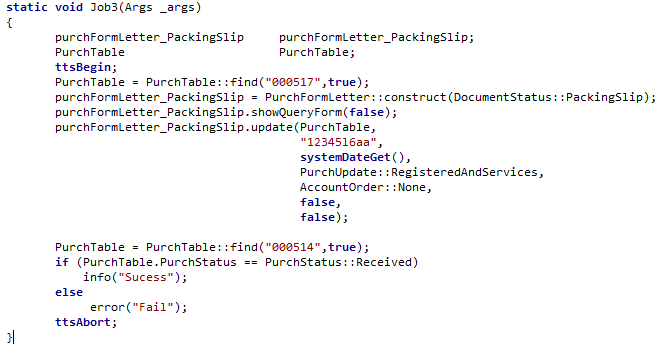
A small demo X++ code for doing the product receipt is like this (for AX 2009 and AX 2012):

image

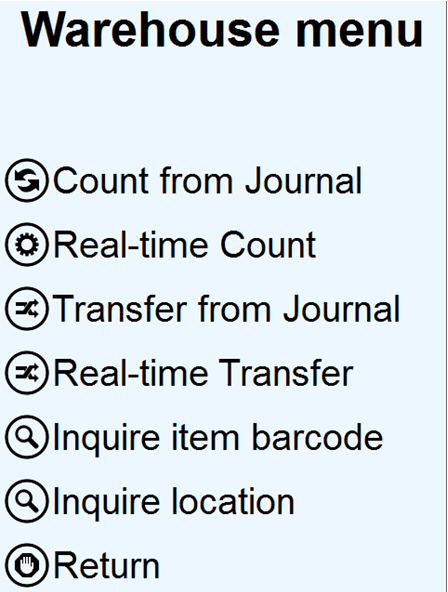
Warehouse menu

The warehouse menu covers ordinary tasks like counting, moving, inquiry etc.

image

Count from Journal:
This program will do a controlled count, based on a counting journal that has been generated. This is typical for cycle counting or when doing aisle counting.

Real-time count:
This program can be used when doing ad-hoc counting of locations.

Transfer from Journal:
This program will perform internal transfers between dimensions. Typical when moving from a location to another, but based on a transfer journal.

Real-time transfer:
This program will perform ad-hoc internal transfers between dimensions. Typical when moving from a location to another.

Inquire item barcode:
Inquire information on an item barcode, and to see where the item is located.

Inquire location:
Inquire contents of locations

Count from Journal

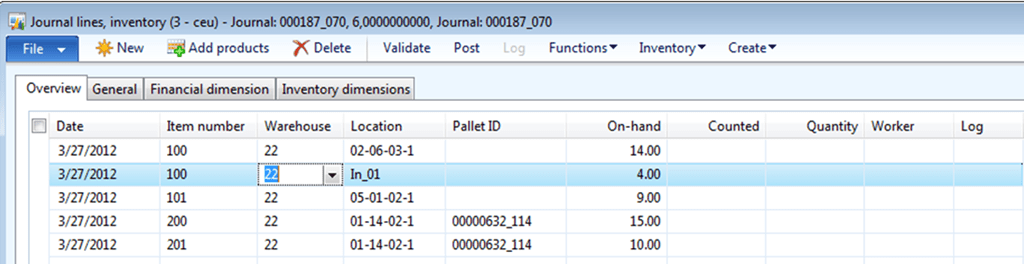
Journal counting is the most common way of counting in Dynamics AX. It used a counting journal to confirm the counting. The process therefore starts by creating a counting journal in Dynamics AX. The PDA journal counting cannot add new items to the journal. It can just count the lines that already exist in the journal. Several workers are allowed to work on the same journal.

image

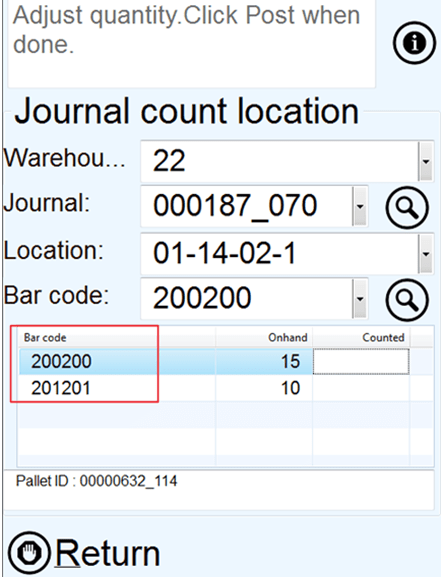
The count from journal PDA form will change in the process.

image

image


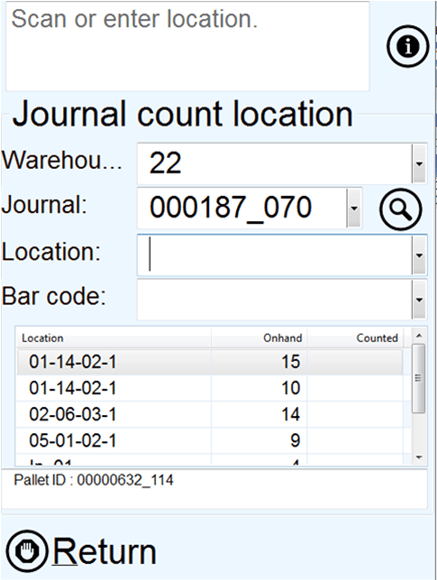
Warehouse:
Enter or scan the warehouse. Normally this will be automatically filled on based on usage data.

Journal:
Select or enter the journal number. The lookup will show open journals, that is not blocked and that do have counting lines. The magnifier button will show the lines on the journal. When the journal has been filled in, then the grid will show all locations that needs to be visited.


Location:
Select or scan the location, that exists in the journal/list.

When the location has been entered, the form will change, and instead of showing next location, it will show the item barcodes available on the location.

image

Barcode:
Select or enter the barcode that should be counted. The lookup button will only show barcodes available on the journal. The magnifier button will show barcode details, like item name, picture and current on hand values.

Counted:
When the barcode is scanned, the cursor will jump to the corresponding line, where the worker can fill in the counted quantity. There exists more items with different tracking dimensions, then look at the dimension view in the bottom screen.

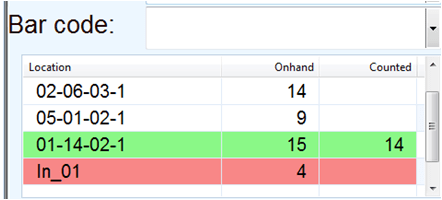
Grid line coloring:
When a line has been counted the line will “jump” to the bottom of the grid, and it will change color. White means that the line has not been counted. Green means that it has been counted with a positive value. Red means that the quantity has been counted away.

image
Post:
When all lines have been counted, the command button “post” will be visible, and the journal can be posted.

Real-time count

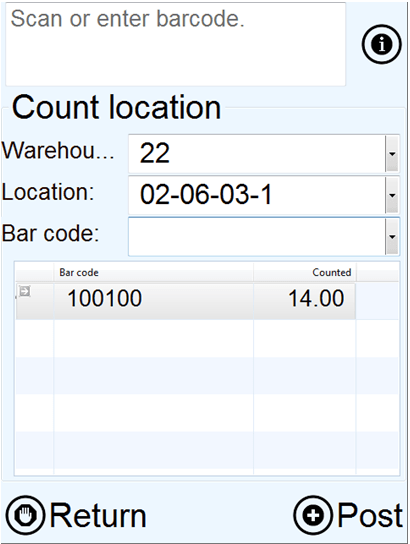
Real time counting is quite similar to journal counting, but the worker does not have a journal.
image

Warehouse:
Enter or scan the warehouse. Normally this will be automatically filled on based on usage data.

Location:
Select or scan the location. When the location has been entered, it will show the item barcodes available on the location.

Bar code:
Select or enter the barcode that should be counted. The lookup button will show all barcodes available. The magnifier button will show barcode details, like item name, picture and current on and values.

Counted:
When the worker has scanned in a barcode, the cursor will jump down to the lines, where the worker can specify the counted quantity.

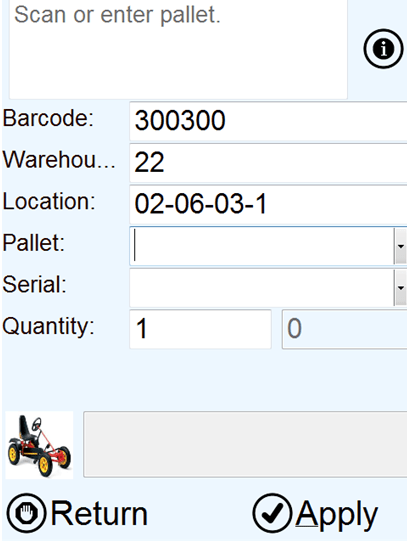
If more mandatory dimensions must be specified, then the item dimension specification form will pop up. In the picture to the left, the PDA requires that both pallet ID and Serial must be specified.

image

Grid color/icon coding
To visualize progress in counting, each line have been added with a small counting symbol.

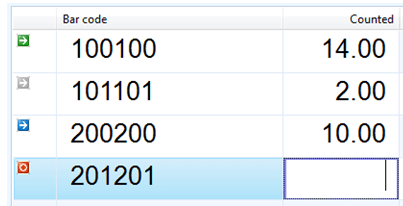
Grey – The existing line has not been counted
Green – The existing line has been counted
Blue – New line has been counted in
Red – The line has been counted out.

image

Post:
To commit the counting, the user must click on the post button. It the user just returns without clicking post, the counting will not be posted. All posting in the real-time counting will be posted using a counting journal. The journal is created and posted within the same transaction. The journal lines will also be marked with the worker ID, and posted date/time.

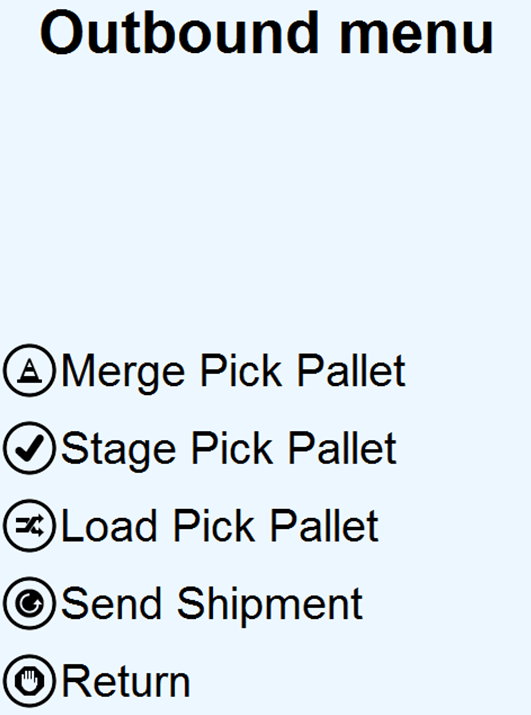
Outbound menu

The outbound menu is related to a consolidated delivery. Processes here is related to what happens after the items have been picked is covered.

image

Merge pick pallets:

Merge pick pallets will combine two pallets into one pallet. This is often done for consolidated deliveries, and typical if the pick pallets actually are boxes or pick baskets.

Stage pick pallets:

Staging is the process of aligning up the delivery pallets at an outbound dock. Also to sort and organize the sequence of how the pallets should be placed in the truck

Load pick pallets:

Loading is done, when placing a pallet into the truck/carrier.

Send shipment:
Sending a shipment corresponds to the send shipment on the standard Dynamics AX form.
Here the worker and also specify if packing slip and bill of lading should be printed.

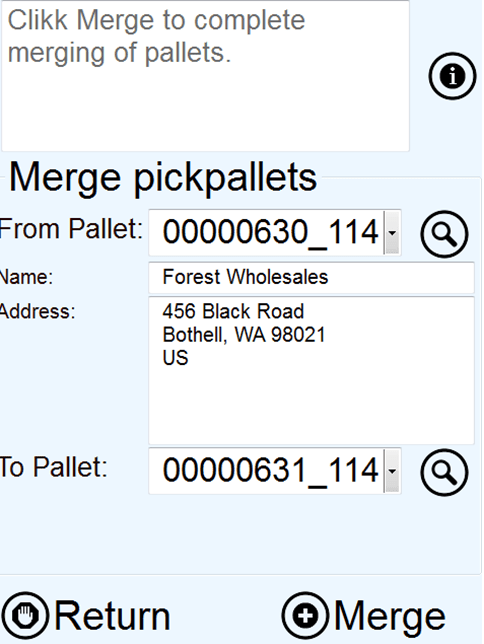
Merge Pick pallets

Merging of pallets should be done to simplify the staging and loading processes, and to keep a better overview of the contents of the outbound dock.

image

From Pallet:
Specify the from pallet. When filled in the delivery name and address will be displayed. The lookup will show all pallets on the current warehouse. The magnifier button will show all items that is currently on the pick pallet.

To Pallet:
Specify the destination pallet. All items and picking lines will be moved into the pallet. The lookup will show all pallet at the current warehouse. The magnifier will show all items that currently exists on the destination pallet.

There are a validation of what ”to pallet” that can be used. This is the same validation as standard AX is using, checking that you cannot combine two pallets destined for different shipments, addresses and customers.

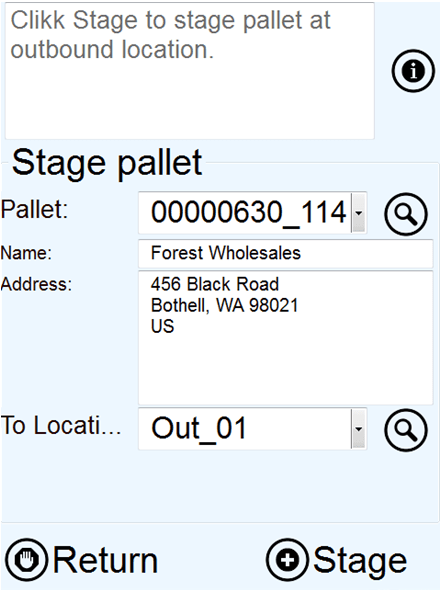
Stage pick pallet

To stage a pallet just means that the status of the picking line changes to status “staged”. It is common to stage the pallet several time to different outbound docks. If the truck/carrier is planning to drive into another outbound dock, than all pallets can be “re-staged” to the new outbound dock.

image

Pallet:
Specify the staging pallet. When filled in the delivery name and address will be displayed. The lookup will show all pallets on the current warehouse. The magnifier button will show all items that is currently on the pick pallet

To location:
Specify the staging location. Normally this is a outbound dock. The lookup will show outbound docks at the current warehouse. The magnifier button will show all items that is currently on the outbound dock.

Stage:
Performs the actual staging

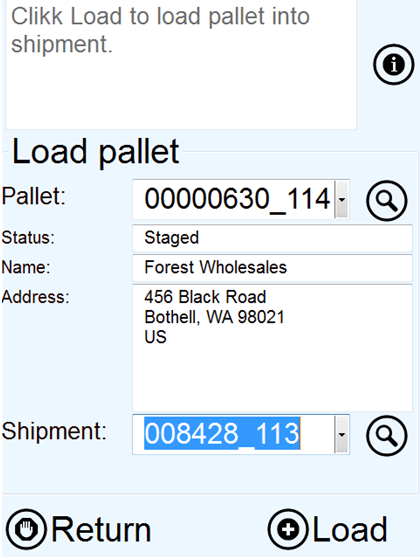
Load pick pallet

Pallet loading should be performed to make sure that all pallets have been correctly loaded into the truck/carrier. To reverse a loading, just stage the pallet again.
image

Pallet ID
Specify the pallet to load. When filled in the delivery name and address will be displayed. The lookup will show all pallets on the current warehouse that is ready to be loaded. The magnifier button will show all items that is currently on the pick pallet.In addition the working instructions will show the expected shipment that the pallet should be loaded into.

Shipment
Scan or enter the shipment where the pallet is loaded into. The lookup button will show all shipments that is not shipped at the current warehouse. The magnifier button will show all items that is currently loaded into the shipment.

Load:
Load the selected pallet into the shipment.

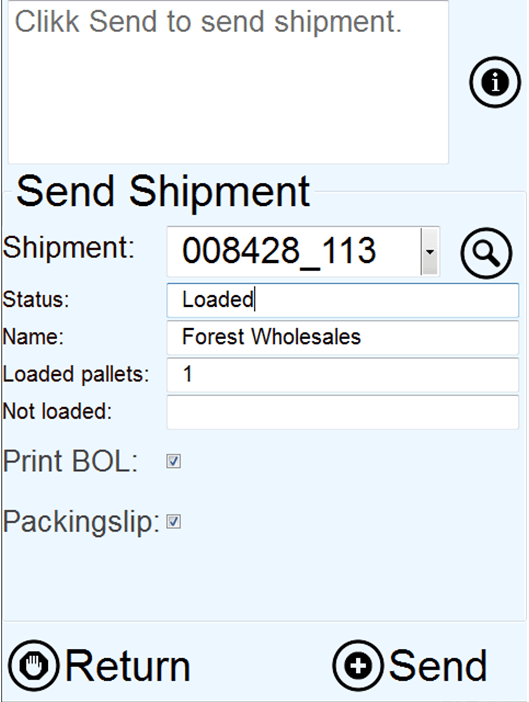
Send shipment

Send shipment is the last task needed to close the shipment and to generate packing slip and bill-of-lading documents. The task corresponds to doing a ”send shipment” in standard Dynamics AX 2012.

image

Shipment
Scan or enter the shipment where the pallet is loaded into. The lookup button will show all shipments that is not shipped at the current warehouse. The magnifier button will show all items that is currently loaded into the shipment.

Status:
Display the expedition status of the shipment

Name:
Display the name of the shipment

Loaded pallets:
Display the number of pallets that have been loaded into the shipment

Not loaded:
Displays number of pallets that have not been loaded into the shipment. If this number is larger than zero, then there are pallets that have not been loaded into the shipment yet, and the operator show wait with sending the shipment.

Print BOL:
Print Bill-of-Lading document based on what has been loaded into the shipment. The print management setup for packing slip will be used as the printer.

Packing slip:
Post and print the packing slip. This is only valid for sales orders and transfer orders.

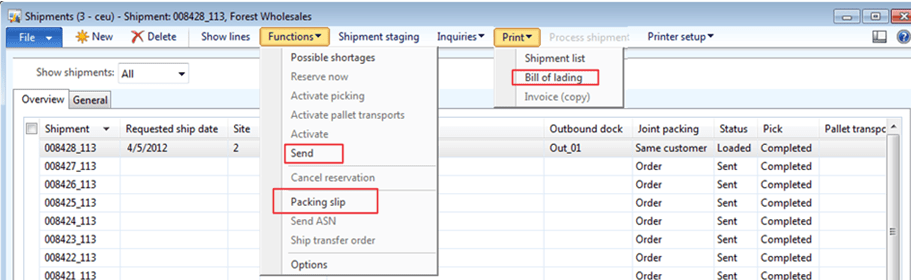
Send:
The send button will send the shipment, and corresponds to the following standard AX function.

image

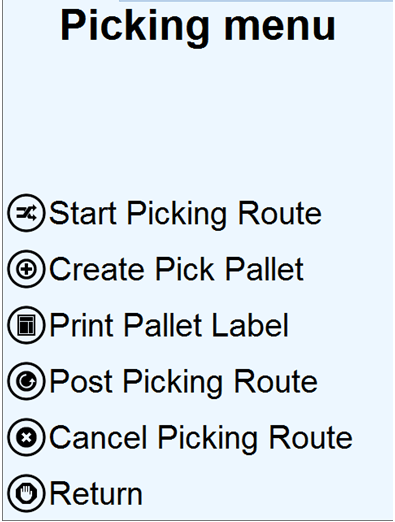
Picking menu

The picking menu supports more advanced picking features, and is regarded as advanced WMS features.

image

Start picking Route:
This menu will start the picking route, and also start the picking process of a route.

Create Pick Pallet:
In a consolidated delivery scenario, the worker can pick goods into pallets or pick baskets. This menu will allow the user to mass generate pick pallets.

Print pallet Label:
When picking is done, then a pallet label many wanted to be reprinted. The Pallet label will contain deliver addresses, and a pallet contents label. Printing will use the BarTender label printout when this is available.

Post picking Route:
When the picking is finished, or the worker must short ship, then the post picking route can be used. This menu will also allow the worker to generate a packing slip for the picked items.

Picking lines that have not been picked, will be cancelled, and can be repacked on the next picking route.

Cancel picking route:
If the picking route must be canceled, ten use this menu. It will cancel the picking route, and it can also unpick any picked lines.

Start picking route – Order pick

The start picking route will look differently depending on if it is a order picking, or if it is a consolidated picking. The main difference is that use of pick pallets. These two scenario’s will be covered separately.

The first scenario is order picking without pick pallets.

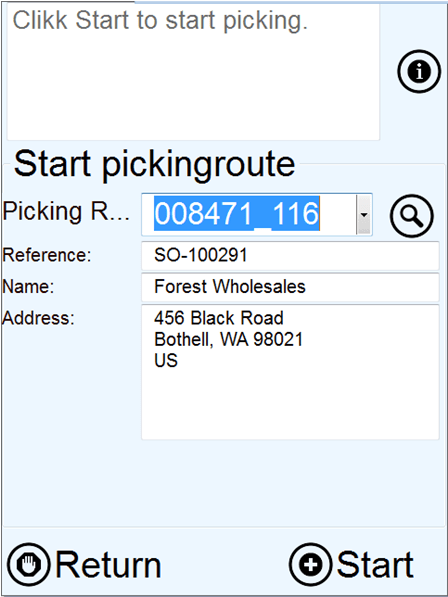
image

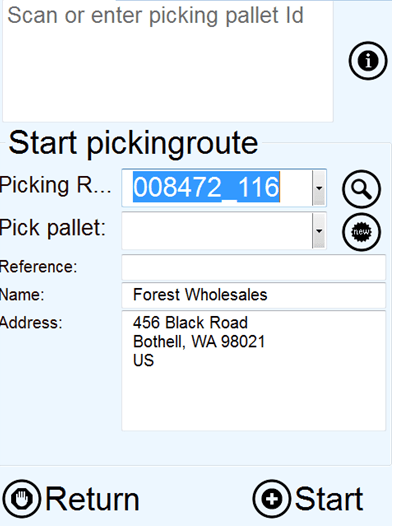
Picking route:
The process starts with that the worker enters or scans the picking route ID. The system confirms back with reference and delivery information and address.

The worker then starts the picking process by clicking start.

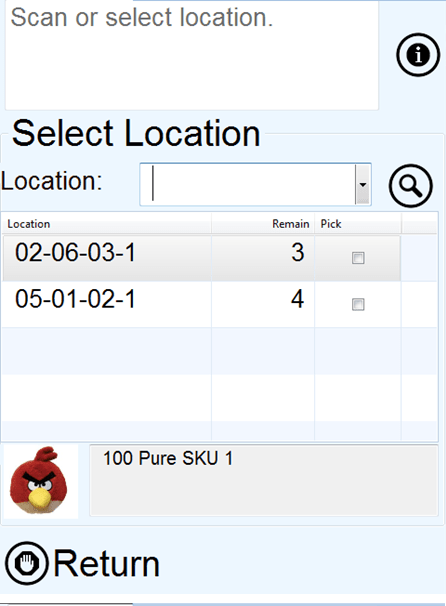
image
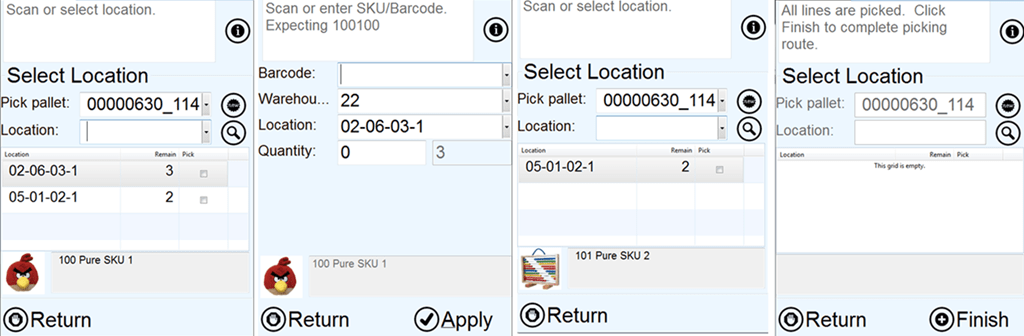
The next screen that the worker will see is a list of all the locations that he needs to pick goods from.

The worker confirms that he as arrived to a location, by scanning one of the locations specified in the list.

If the locations do not have bar codes, the worker can also click in the “pick” column in the grid.

In the bottom, the worker can se a small picture of the product, item number and other dimensions. The item text will also be visible.

image

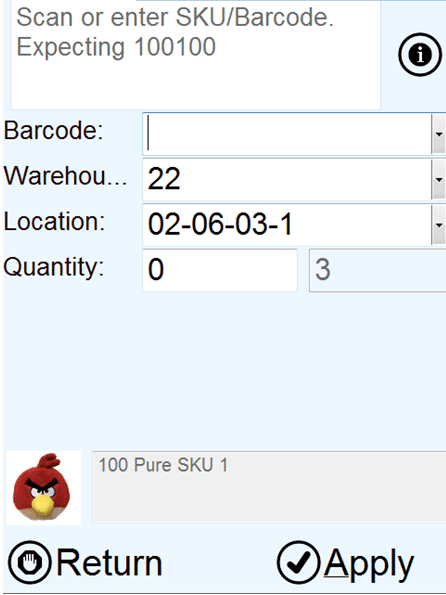
When the worker confirms the location, the followig confirmation screen will pop up.

Here the worker must confirm the item barcode, bu scanning this, and also fill inn any additional dimensions, if this is missing. Like pallet, batch or serial number.

The requested quantity is on the right of the quantity field

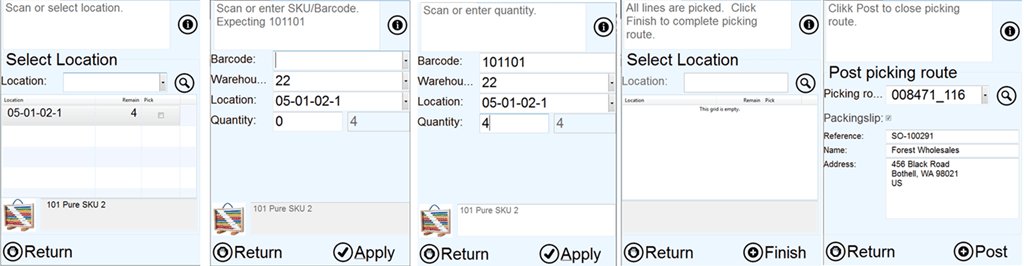
When the quantity is filled on, the item quantity dialog will close, and the worker can start on the next picking line.

image

The last step in the picking process is to post a picking route. This will also generate the packing slip.

Start picking route – consolidated pick

The consolidated pick, is using output orders and shipments to control the process. The Sales order generate output orders, and they are collected in a shipment. It is important to understand the main process of consolidated picking to make sure that the steps are followed. The main thing is the use of pick pallets that must be in place to cover the following process.

image

The process starts with the picking process, that is quite simular to the order picking, but where the worker places the picket items on to a pick pallet. The next step is to stage the pallet at a outbound dock. Here the pallets will be placed until they are loaded into a truck or a carrier. The last step is to send the shipment, that will be the final delivery to the customer/warehouse. For more information on using output orders and shipments, please refer to standard AX 2012 documentation.

image

If a consolidated picking route has been generated, then the start picking route screen will change to include pick pallet. In this form a pre-created pick pallet can be selected, or the worker can create a new pick pallet, by clicking on the “new” button”. The select location screen will also have pick pallet as a criteria, where the worker can decide on whish pick pallet the goods should be collected on.

image

When done, the PDA will return to the ”start picking route”, ready for the next picking route.

Create pick pallet

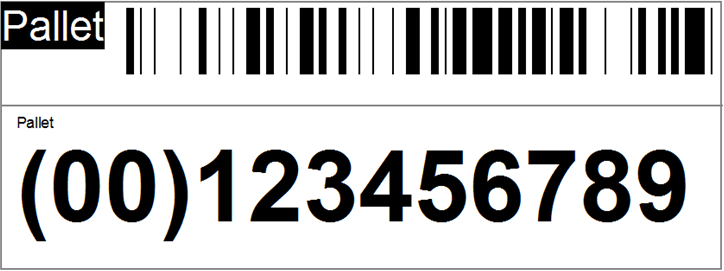
In a consolidated pick scenario, it is often needed to generate a lot of pick pallets. Often the creation of pick pallets will also produce a label, that the pallet/pick basket can be marked with. Free pallet can look like this, if generated using Columbus BarTender integration.

image

image

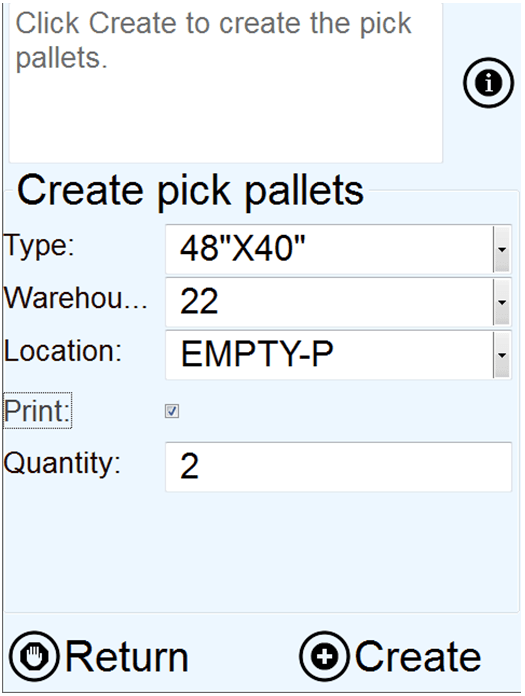
The PDA used for generating pick pallets have the following fields :

Type: Enter the pallet type. This is a property on the pallet, that controls size and volume. It also controls if this is a pick basket.

Warehouse:Enter a warehouse where the pick pallet is stored.

Location:Enter a location where the pallet is located. Normally this will be a ”empty pallet” location. The default value is fetched from the empty pallet location defined on the warehouse record.

Print:Specify if the label should be printed. If Columbus BarTender integration is installed than this printer will be used.

Quantity:Enter number of pallets that should be generated.

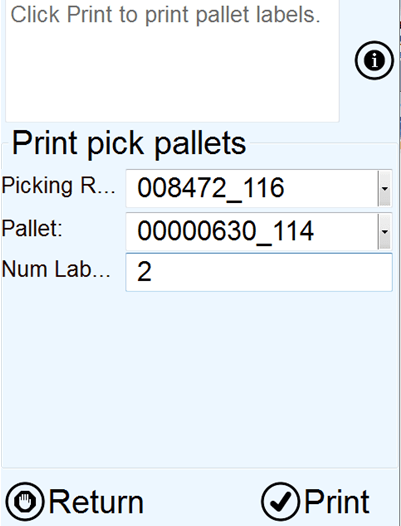
Print pallet label

Normally each pallet is marked with an anonymous pallet label. Often it is wanted to print a new pallet label, that do contain delivery name and addresses. Sometimes a pallet contents label is printed, and placed on the physical pallet after it is wrapped. This makes it easier in the staging are to know what pallet belongs to what shipment/customer etc.

image

Picking route:
The field picking route is not a mandatory field, and is just used for simplifying the lookup of the pallet ID. If filled in, then only pallets belonging to the specified picking route will appear. The magnifier button will show the lines on the picking route.

Pallet:
Specify pallet ID

Num labels:
Specify number of label(copies) that is wanted.

Print:
Will print the new pallet label

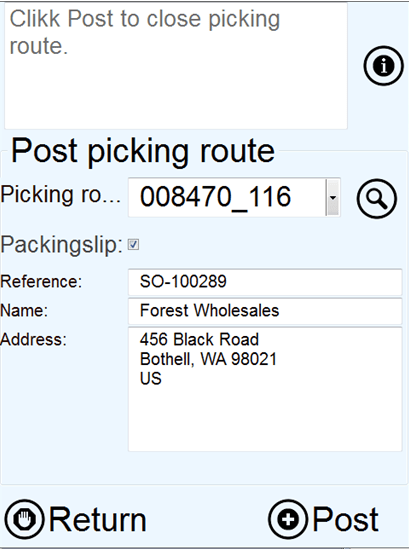
1.5. Post picking route

Post picking route only have a function in when the picking route is order based and NOT consolidated. The post picking route will complete the picking route, and post the packing slip for the picked lines.

image

Picking route:
Spesify the picking route that is going to be posted, and packing slip updated.

The lookup will only show picking routes that have the expeditionstatus registered to loaded at current warehouse.

Post:
Post the picking route

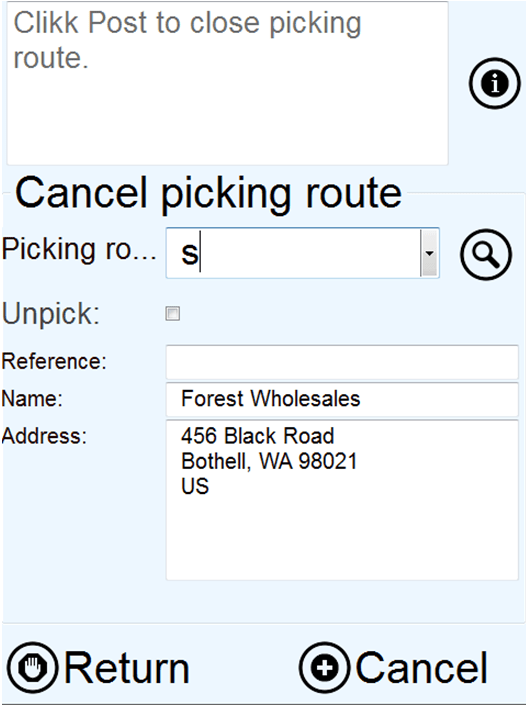
Cancel picking route

The cancel picking route is a PDA program for cancelling a picking route. All lines will be returned to the original status, and a new picking route must be generated before they can be picked again.

image 

Picking route:
Spesify the picking route that is going to be cancelled.
The lookup will only show picking routes that have the expedition status registered to loaded at current warehouse. The magnifier button will show the lines on the picking route.

Unpick:
If this selection is set, then any picked lines will be unpicked, and the items will be return to the original location.

Cancel:
Cancels the picking route.
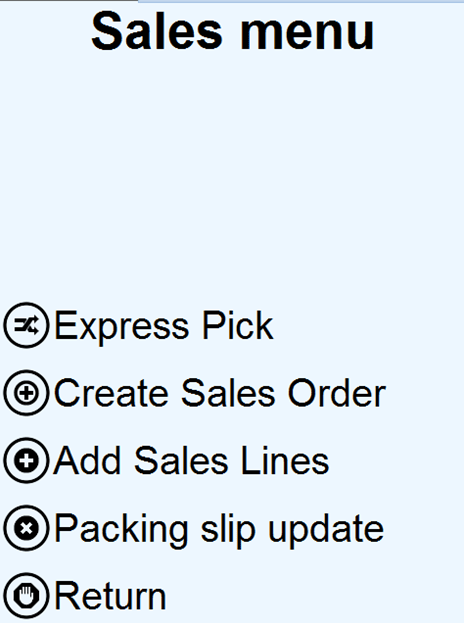
Sales menu

The PDA sales menu is created for doing express picking and for creating sales order journals.

image

Express Pick:
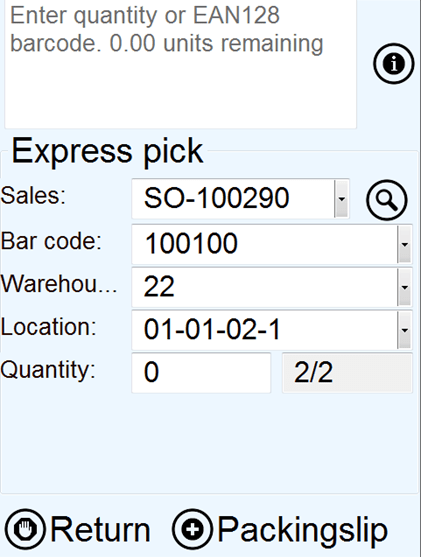
This program will pick sales order lines when picking routes are NOT used. The program expects that the sales order has already been created and are confirmed. The user then scans the item barcodes, and picks, until the sales order is finished.

Create Sales Order:
This program will create a sales journal, and add sales order lines.

Add Sales Lines:
This functionality of this program is similar to the create sales order, but the user can upfront select the sales order. The program can also add lines to ordinary sales orders.

Packing slip update:

The packing slip update will post a packing slip for the picked lines.

Express pick

The express pick form, expects that there already exists a created sales order, that is NOT a journal. Then the user can scan the items, and PICK the lines. When all lines are done, then the sales order can be packing slip updated.

image

Sales:
Scan or fill in the sales number. The lookup will show all sales orders that has the sales status “backorder”, and will even be filtered on item barcode, if this already have been filled in.

If the sales order do not have any lines to pick, then the sales order will not be accepted.

The magnifier button will show “remaining lines” on the sales order. When all lines have been picked, then the list will not show any lines.

Bar code:
Accepts item barcodes or EAN128 codes.
Lookup is filtered to only show item barcodes that exists on the sales order. View details will open the released products form. The magnifier button will open the items details for this item/barcode.
Dimensions:
The express pick do not support batch and serial numbers.
Quantity:
As soon as the quantity has been filled in, the quantity will be picked. The quantity field accepts EAN128. If a negative quantity is entered, then the picked quantity will be returned.

Packing slip:
The last step is to packing slip update the picked items. This option is only allowed if all lines have been picked. The packing slip will be printed according to the print management setup.

Create Sales Order

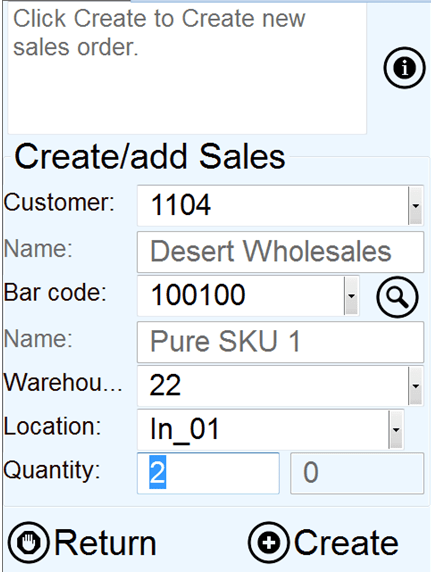
The create sales order program will create a sales order journal. The scenario for this program, is that a warehouse worker can go around in the warehouse, and create a sales order, by scanning the products. When done, the worker can return back to a normal AX client, and make the necessary adjustments on price delivery date etc, and send a confirmation to the customer.

The Create Sales order will not pick the goods !

image

Customer:
Fill inn or select the customer. The lookup will not show customers that are blocked. When customer is filled in, the customer name will be visible on the name field.

Bar Code:
Accepts item barcodes or EAN128 codes. Lookup is not filtered. View details will open the released products form. The magnifier button will open the items details for this item/barcode. When “Bar code” is filled in, then the item name will be visible in the name field.

Dimensions:
The create Sales Order can only be specified with warehouse and location. Other dimensions like pallet, batch and serial must be specified in the picking process, or on a full AX client.

Quantity:
The quantity field accepts EAN128.

Create/Add:
If there already exists an open sales order journal, the sales line will be added. If not, then a new sales order journal will be created.

Add Sales Line

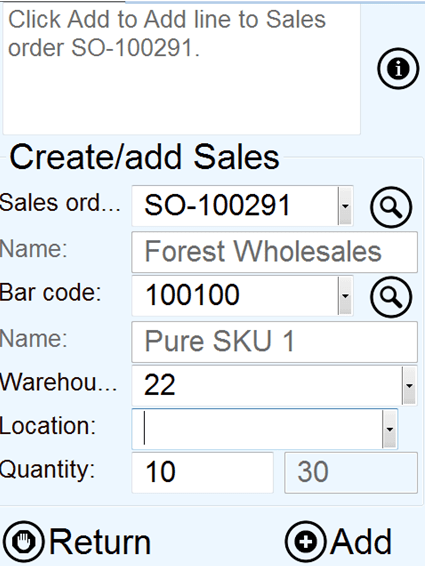
The Add sales line is actually the same PDA form as “Create Sales Order”. The difference is that instead of specifying a customer, the user selects an open sales order. Normal backorder sales orders can also be used.

image

The magnifier shows open lines related to the sales order. For the other fields, refer to the PDA form “Create Sales Order”.

Packing slip update

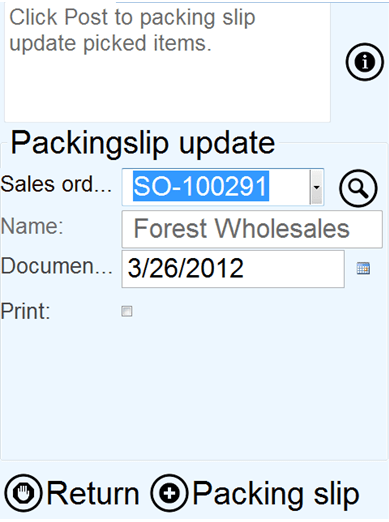
The PDA packing slip update will physically update of the sales order, and create a packing slip for the sales lines that have been picked.

image

Sales order:
Scan or enter the sales order number. The lookup is filtered to only show sales orders that have lines that are picked.

The sales name will be displayed in the Name field.

Document date:
If the lines was picked on another date then today, then the document date can be changed.

Print:
The packing slip printout will be printed using the print management feature in Dynamics AX 2012.

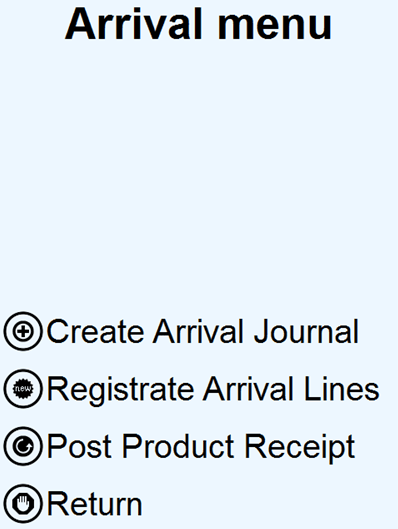
Arrival menu

The arrival menu covers the main aspects of doing receipt of goods. The functionality is similar to the arrival journal in Dynamics AX 2012. The arrival menu can therefore be used for several types of receipts, and the following receipts types are possible. Purchase orders, Return sales orders(RMA), Production (report as finished), Transaction, Inventory adjustments, Transfer, Bom journal, Counting, Quarantine order, Transfer order receive and quality order. For details about these transaction types, refer to standard Dynamics AX 2012 help.

The 3 options presented to the user are:

image

Create Arrival Journal.

This program allows the worker to create an arrival journal, and to start the receipt process.

Registrate Arrival Lines
This program allows the worker to continue the receipt process of an existing arrival journal

Post Product Receipt
This program allows the worker to do a product receipt of an arrival journal. This is only valid for arrival journals containing lines from a purchase order or a transfer order receipt.

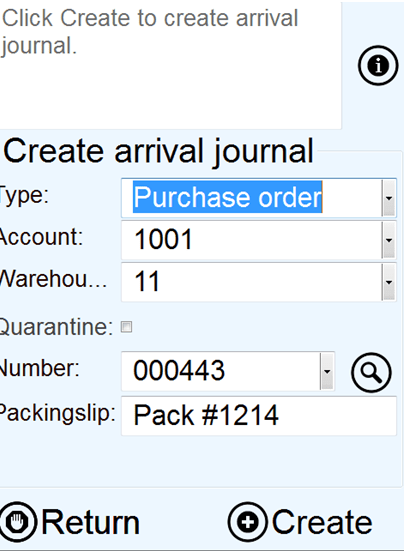
Create Arrival Journal

To create a arrival journal and doing the actual registration process.

image

Type:
The first step is to select the type. Several options are available, and the form will change according to what type is selected. If a Purchase order is selected, then the worker can select vendor and purchase number. If a production is selected, then the worker must select a production order etc.

Account:
The account field is only visible if the type is “Purchase order”, and lets you select the vendor. This is not a mandatory step, but will help to filter and narrow down the possible purchase orders to be selected.

Warehouse:
Select the warehouse where the arrival journal line will be received into. Mainly used to filter and narrow down the possible purchase orders to be selected.

Quarantine:
Select this option, if the quarantine possibilities should be used. This means that the receipt will be posted into a quarantine warehouse, and then the quarantine process will take over.

Number:
Enter of scan the reference number according to the type selected.

Packing slip:
Enter or scan the packing slip number. This number can be used later in the process, when doing product receipt posting.

Create:
When done, the press create to start the arrival registration process.

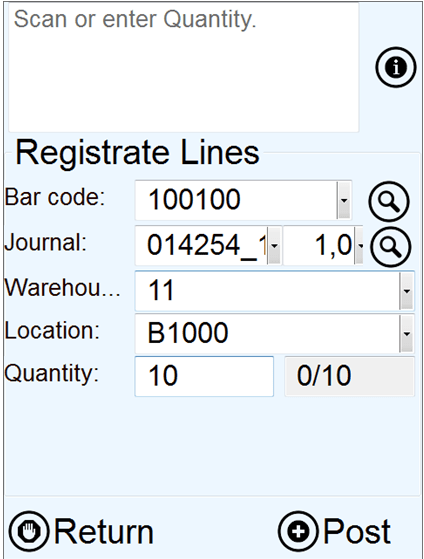
Registrate Arrival Lines

The registration of arrival lines, is the same as when happens in the arrival journal in Dynamcis AX 2012. First the lines have been create in the create arrival journal form. The form starts by scanning item barcode. The reason for this is that is seldom that any warehouse will receive the same item in two different arrival journals at the same time. It will also make the process of finding the journal ID easier for the PDA program, since most likely the goods is already barcode marked from the vendor/production etc.

To keep track of if a line is completed or not, there is a very small modification in std AX. A new Boolean field on the arrival journal lines has been added, called PDACompleted.  This field is only used in this form, and will not affect and standard AX functionality. Often the warehouse manager will generate a arrival journal, using the arrival overview screen, and create the needed arrival journals. The worker can also manually create arrival journals using the create arrival journal PDA form.

image

Bar code:
Accepts item barcodes or EAN128 codes.
Lookup is filtered to only show item barcodes that has a open arrival journal associated. View details will open the released products form.

The magnifier button will open the items details for this item/barcode.

Journal and journal line.
If there exists 2 open arrival journal on the same barcode, then the journal will NOT be automatically filled in, and the worker must select the correct one. This also applies, if there are several arrival lines on the same item barcode.

The magnifier button will open the a list form, showing all lines on the arrival journal, and will also show what lines that are complete, and what is still missing.

Warehouse and Location
The warehouse and location can be filled in automatically, if the item do have a standard picking location. Else, the worker must scan in this.

Additional dimensions
If additional dimensions are required(like Pallet ID, Batch ID and Serial ID), then field for these will also appear in the form.

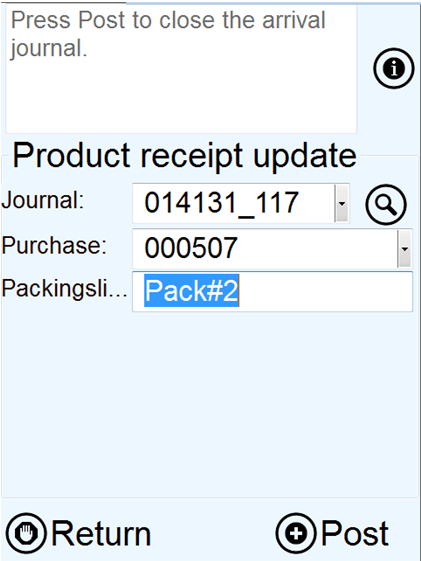
Post Product Receipt

The post product receipt is only valid for registrations where a purchase or a transfer order receipt is done.

image

Journal:
Scan or enter the journal number, that should be product receipt updated. The lookup is filtered to only show journals that is posted, and that have registered inventory transactions attached. The view details will open the location journal form, filtered as default in Dynamics ax, on Open journals. The worker must therefore most likely filter to show all, and then find the correct journal. The magnifier, will show the lines on the journal.

Purchase:
Normally this field will automatically be filled in when the journal is filled on. If not, then scan or enter the purchase ID. The lookup will filter to only show registered purchase orders.

Packing slip:
Normally this field will be automatically filled in, since the packing slip ID was entered when the worker created the arrival journal. Else, fill in the packing slip.

Post:
When ready to post the journal, then click post. This corresponds to posting receipt on the arrival journal.

image

Purchase menu and functionality

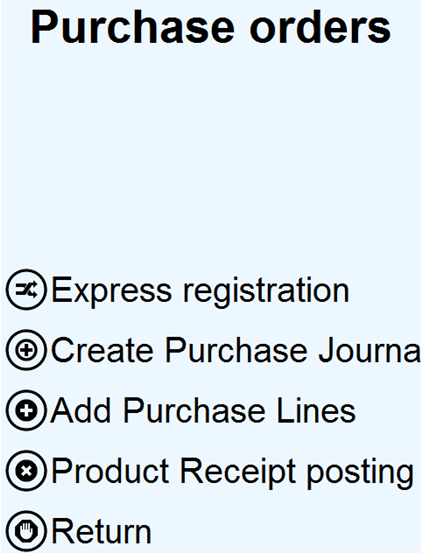
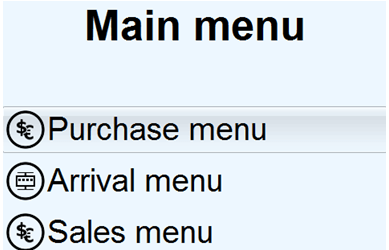
The purchase menu covers 2 main aspects. The ability to do express registration, and to create and process purchase orders. The 4 options presented to the user are:

image

Express registration.
This program allows the worker to perform a purchase line registration into a location.

Create Purchase Journal.
This program allows the worker to create a purchase journal with purchase lines that can later be confirmed and sent to a vendor.

Add Purchase lines.
This program allows the worker add purchase lines to a journal or existing purchase order.

Product Receipt posting.
This program allows the worker to post the product receipt (Purchase Packing slip update)

Express registration

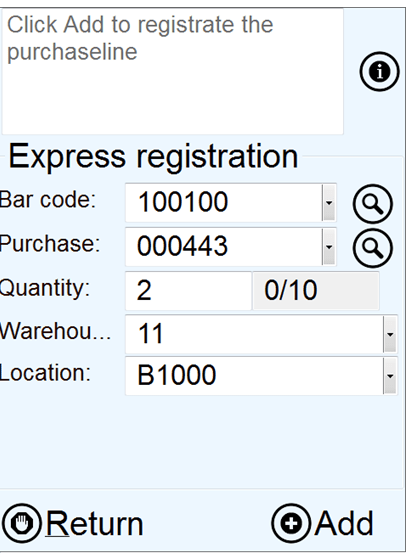
Express registration is a process, where the worker very easily can do a registration of purchase lines into a location. When a purchase line is registered into a location, the quantity will be included in the physical inventory. The physical cost is not posted, and after the registration process is done, and then a product receipt posting must be done, to post the physical cost.

image

Field and filter explanation:
Bar code:
Accepts item barcodes or EAN128 codes.
Lookup is filtered to only show open purchase lines. If purchase is filled in, then bar code lookup will filter within the purchase.
View details will open the released products form.

The magnifier button will open the items details for this item/barcode.

Purchase:
Accepts confirmed purchase ID’s.


Lookup is filtered to only show open purchase lines with the specified item barcode. If item barcode is not filled in, then purchase lookup will filter on all open purchase orders.

View details will open the purchase order form.
The magnifier button will show all purchase lines in a separate form, showing quantity and remaining quantity.

Warehouse, location, pallet and Batch
Based on enabled storage- and tracking dimensions, the form will request dimensions like warehouse, location, pallet ID or batch number. Only enabled dimensions will show.

Serial numbers are not supported in the express receive.

Posting
When the registration is complete, the worker must press the Add button to perform the registration. When doing this, the form will be emptied, and ready for the next item/scan.

What the Columbus PDA will do when posting a express registration, it to create a single line in the Arrival Journal, and instantly post it. So all express registrations will have an arrival journal associated to the posting. The name of the arrival journal will be “Express registration, Purchase %1, Date %2”.

Other design considerations
The reason why the item barcode is the first registration is because it is most likely only the product that does have a barcode attached. But to change the scanning sequence, is a small change that can be done upon request.

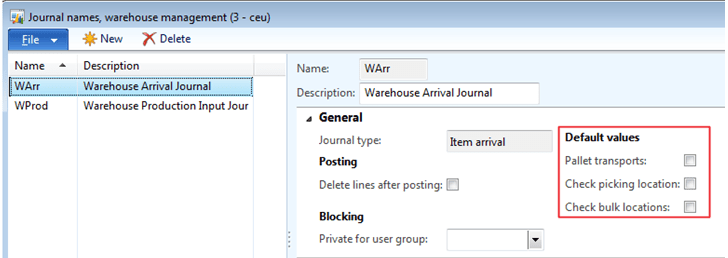
Setup Considerations
The express receive will use the default arrival journal. It is therefore important to create a arrival journal name, that do NOT validate pick, buffer and transports. Set up the default arrival journal like this:

image

Create purchase journal

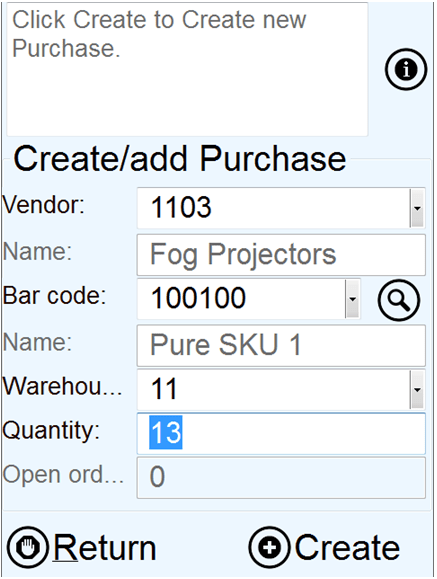
The create purchase journal is a small form, that allows the worker to build up purchase journals, based on scanning item barcodes. The process starts either by scanning/selecting vendor or by scanning item barcode. The scenario is that this form can be used by a warehouse working that walks around in a warehouse or a store, and orders refills from the primary vendor. After all scanning is done, the worker returns to a PC, and changes the purchase order from journal to order, and then completes the normal order processing of the purchase order.

image

Field and filter explanation:

Vendor:
Select or enter the vendor ID. The system will automatically fill inn the vendor name in the field below.

Lookup on the vendor only filtering away blocked vendors.

View details will bring up the vendor details.

In the vendor field, it is also allowed to scan item barcode. The PDA, will then fill automatically fill in the item barcode, and the primary vendor.

Bar code:
Accepts item barcodes or EAN128 codes.
Lookup is filtered to only show item barcodes that has the selected vendor as primary vendor. If not vendor is filled in, then it will show all items bar codes.

View details will open the released products form.

The magnifier button will open the items details for this item/barcode.

The item name will also be displayed when the bar code is filled in.

Warehouse
Warehouse will be automatically filled in, based on the primary and current warehouse, selected in the PDA setup.

Quantity
The quantity will accept EAN 128. If the item barcode is associated with a quantity, then this will be used.

Open orders
The open orders field is used to show other existing open purchase lines that exists for the item. This field is used to help the worker determine if he should check more before ordering.

This form have both a “create” and a “add” function, because if there already exists an open purchase journal to the same vendor, then the form will add the item barcode to the existing purchase order. If the item barcode already exists on the purchase journal, then the quantity will just increase. Else the purchase line and purchase journal will be created.


Add purchase line

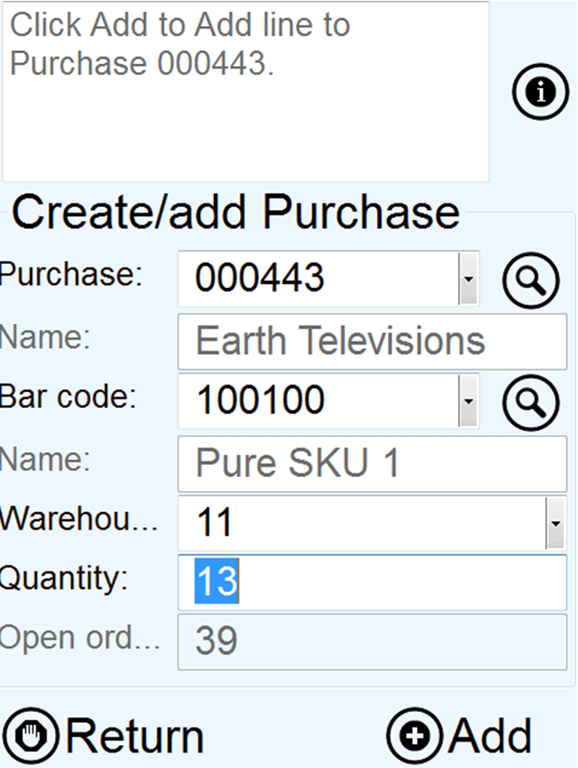
The add purchase line is actually the same screen as the create purchase journal screen.

image

Refer to the previous form for explanation of the field. The main difference is that the vendor field has been replaced with a purchase ID field. The other difference is that it is possible to add lines to a normal purchase order on this screen. Also a magnifier button for seeing the contents of the purchase order has been added. The idea here is that the form can be used to register/create purchase orders in the receive department. One scenario could be registration of blind receipts, where goods has been ordered without having a valid purchase order. Remember to validate and confirm the purchase order as done in the normal order processing after the registration is completed.


Product receipt posting

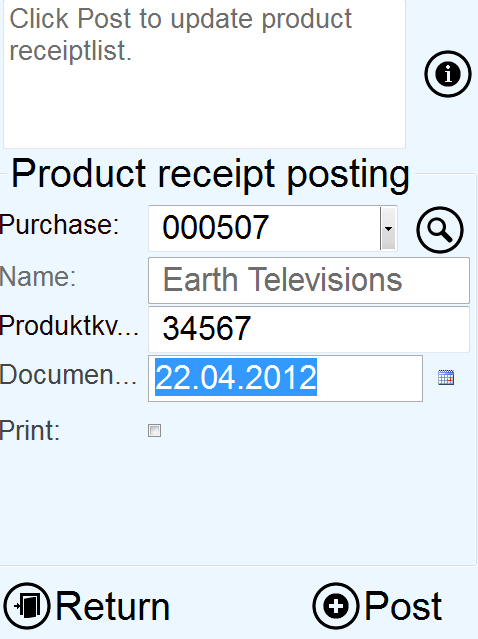
Posting of product receipt is an important process in Dynamics AX 2012. The process will generate a product receipt formletter, and will also change the inventory transactions to status “received”. Also any item cost will be physically posted to ledger.

image

Purchase:
The Columbus PDA product receipt posting will ONLY post registered quantities. If the form does not accept the purchase ID you enter/select, it is because the purchase order lines are not registered. The scenario is that the worker uses express registration, and when done the worker can do a product receipt posting to complete the arrival process.

The other criteria is that the selected purchase order must be “confirmed”. Only approved purchase orders will generate a error.

The purchase magnifier will show the registered quantity, and the “remainder” quantity.

Product receipt number:
This is the vendors packingslip number, and must be entered/scanned to be allowed to post the product receipt.

Document date:
If the goods are received on another date then the current date, then the document date can be adjusted.

Print:
If the user wants a printout of the product receipt, then select the print option. The printer is determined by the print management setup of standard dynamics AX 2012.

Enabling wireless PDA capabilities in AX 2012

I wanted to share with you how I have enabled the rich functionality of Dynamics AX 2012 to be run on a wireless device. What I show you here is 100% based on AX 2012 feature Pack, and everything is created in AX 2012. I decided also to have no changes on std. AX elements, and only use existing available functionality of AX 2012. 

The wireless communication can be achieved either through the customer’s wireless infrastructure or a cellular network. To speed up the data mining process, the device must support touch screen and either barcode scanning or radio frequency reading.

Each wireless device can connect to an individual session through Remote Desktop Services of Microsoft Server 2008.

The key benefits of this setup:

• The build in communication and security features of Windows are utilized.
• Maintenance and deployment tasks are centralized, because all logic are located and run on one server and not on each device.
• The customer’s own IT department can set up new devices, because only the communication information is to be set up on the device.
• No business critical data is stored or executed on the device.

Wireless device

· Microsoft Windows Mobile 6.1 or later
· Remote Desktop Service client 7.0 (build into Windows Mobile 6.1)
· VGA (640 X 480) color touch panel (Other resolutions is just a configuration)
· Wireless network adaptor or cellular adaptor (EDGE or better)
· Barcode scanner or RF-tag reader

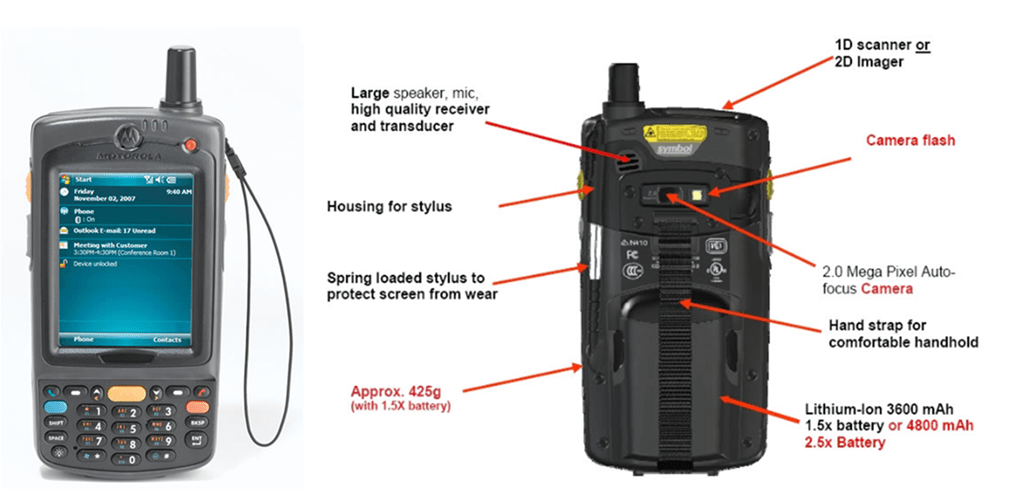
Due to past experience with several hardware vendors, and the requirements of the PDA solution, I have can recommend the Motorola MC75 wireless device. The MC75 is available in different configurations and can fulfill the specific needs of a typical customer.

image

General properties of a PDA form

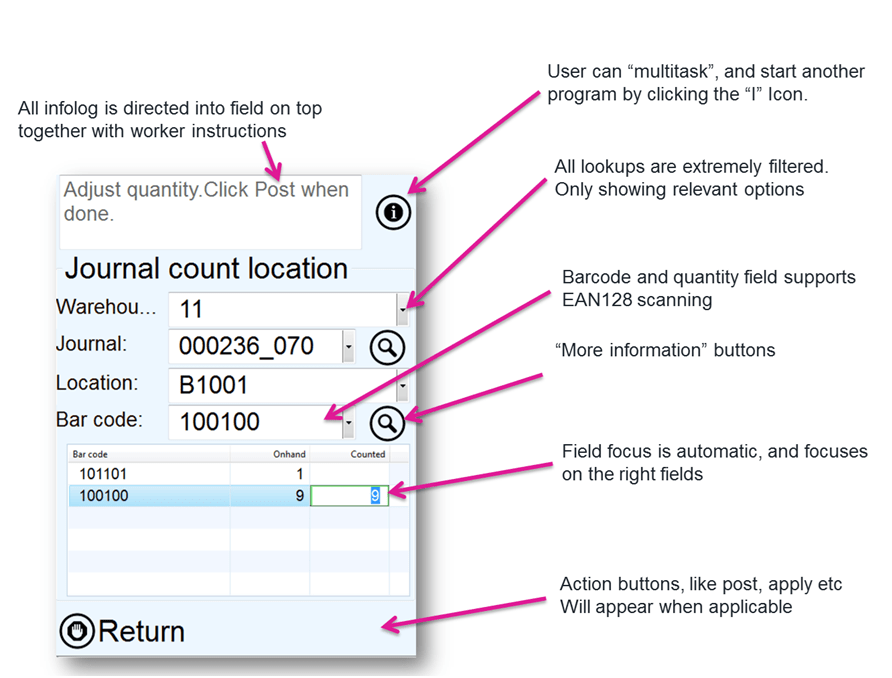
All forms in a PDA solution should have the same generic properties, and what I have done is the following.

image

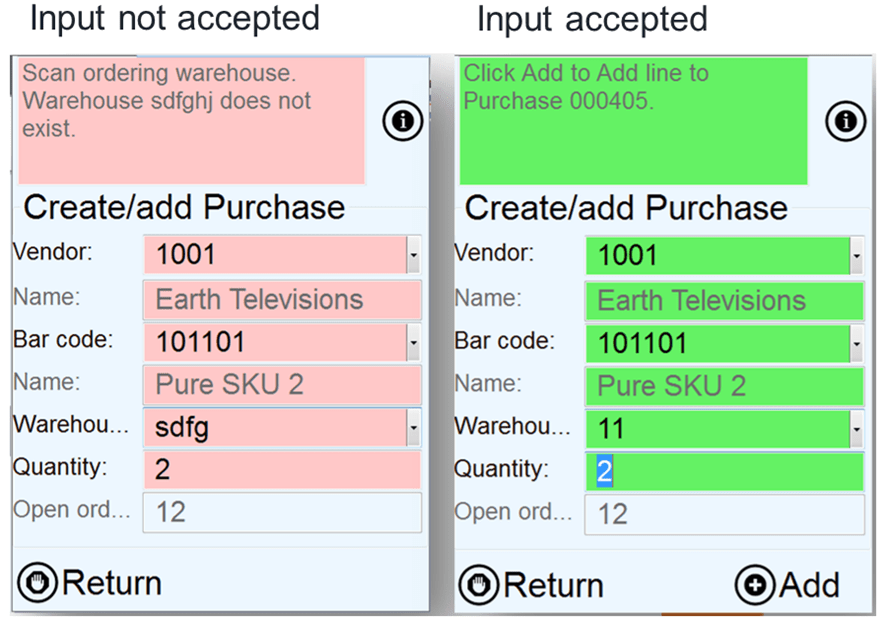
In addition, it is recommended to have a visual confirmation to the user.  Like a flash green, if the input is accepted, and red permanent background if the scanned/entered data is not accepted.

image

Item barcodes required

To efficiently use a PDA, all items should have an item barcode associated to each item. The main reason for this, is that the item barcode will contain the unique reference to item and the product dimensions like configuration, size, color and style. If it is not a possibility to have item barcodes on the products, than use the item number as the item barcode.

To generate item barcodes, it is possible to automate this with a  set of jobs than can be ran to periodically generate standard item barcodes.

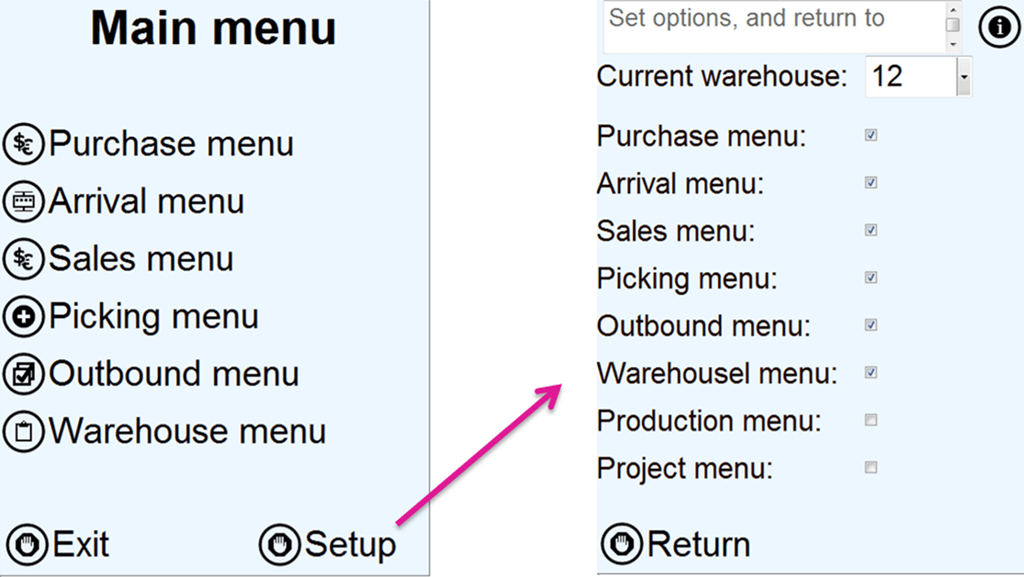
Main menu and setup

The main menu, if the first screen that the user will access. I can recommend to implement a command line parameter, to automatically start the PDA. This means that when the user logs into the RDP, an auto startup command with AX32.exe –startupCmd=PDA, that will start the PDA menu automatically.

In addition it is recommended that the Exit button do a log-out of the user from the RDP session. If the user just wants to exit the PDA menu, then press “ESC” to exit, and the RDP sessions is closed.

The PDA screens should also be configured per user in a setup.

image

In the setup, the user can set up a default “current warehouse”, so that lookups and scanning is limited to the specified warehouse. In addition the worker can enable/disable functional areas that are not applicable to the workers normal operations, and therefore also reduce the number of options on the main menu.

Then the user is keeping his finger down on the screen, the current selected menu.

image

The menu items are also attached to configuration keys, so if a configuration is disabled (like project or production), then the menu will not be visible.

Generic and common forms

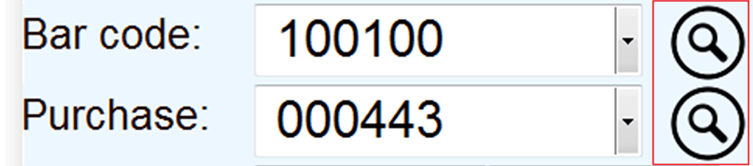
In several places a magnifier glass will appear like this:

image

This is a menu button to drill further based on the information that is filled in. In general there are 4 main types for generic forms. Item information, dimension specification, lists and picture.

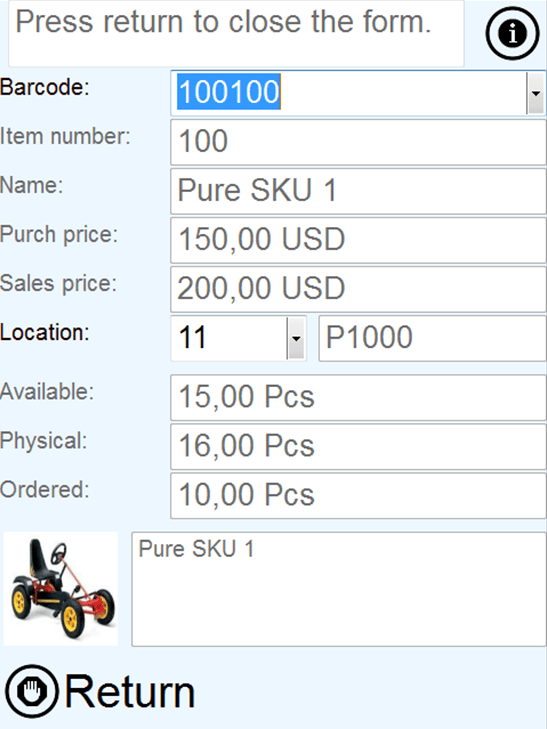
Item information

The item information form will show primary information, like item barcode, item number, item name, standard purchase and sales price. In addition there are a editable field under the “location”. This is the warehouse. Normally the default warehouse will be filled in here, but the user can change this. This will affect the display of the primary picking location, and the fields for on hand, like available physical, Physical and ordered.

image

In the bottom, the item barcodes product dimensions, in addition to the item description.

The default product image is also seen here. By clicking on the image, the system will bring up a full size picture of the product.

Item and dimension specification

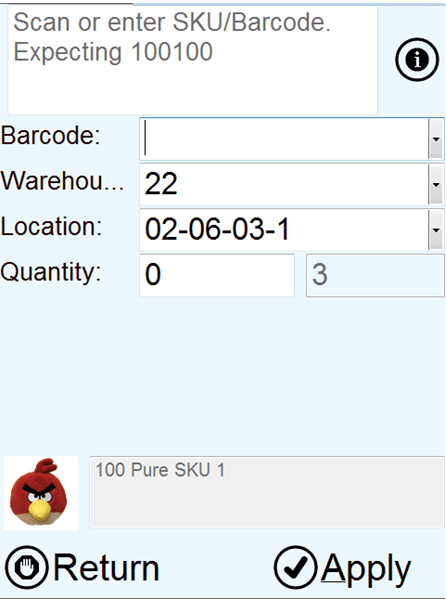
The item dimension specification form, is typical used when there is not enough space in the form to specify all dimensions. Then a separate form will popup, where the user must specify/rescan item barcode, and also specify additional dimensions like pallet ID, Batch or Serial number.

image

This form is mainly used in picking situations, and what fields/dimensions that should be visible is dependent on the storage and tracking dimension group of the item.

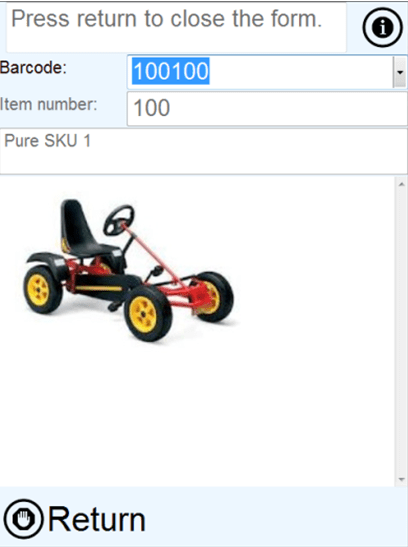
Product picture

The product picture form is a very simple form, that just gives the user a full size picture of the product. In addition, item bar code, item number, item name and product dimensions will be shown.

image

Lists

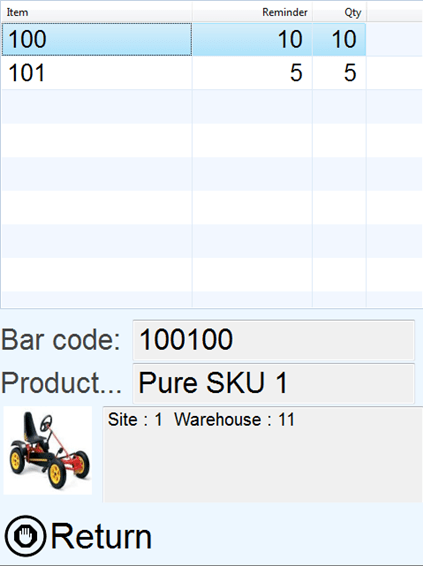
In some cases the magnifier will bring up lists to give the worker an overview. This could be an overview of all purchase lines, all items on a location, all lines on a journal etc.

The list contains a list with different information, a reminder and a quantity. The list changes based on from where it is called, and what it is supposed to show.

image

In this example it will show open purchase lines, showing item, reminder and line quantity. In the bottom the item bar code and product description is shown.

In the bottom section all dimensions from the line will be shown. Both product, storage and tracking dimensions will be shown here.

The default product picture is clickable, and will show the picture in full format.

Summary

To have these generic and common forms and framework, the development of the functional forms become very easy, and I could focus on the actual functionality.  Drop by my blog in the weeks to follow, and I’ll show you how the functionality actually works.